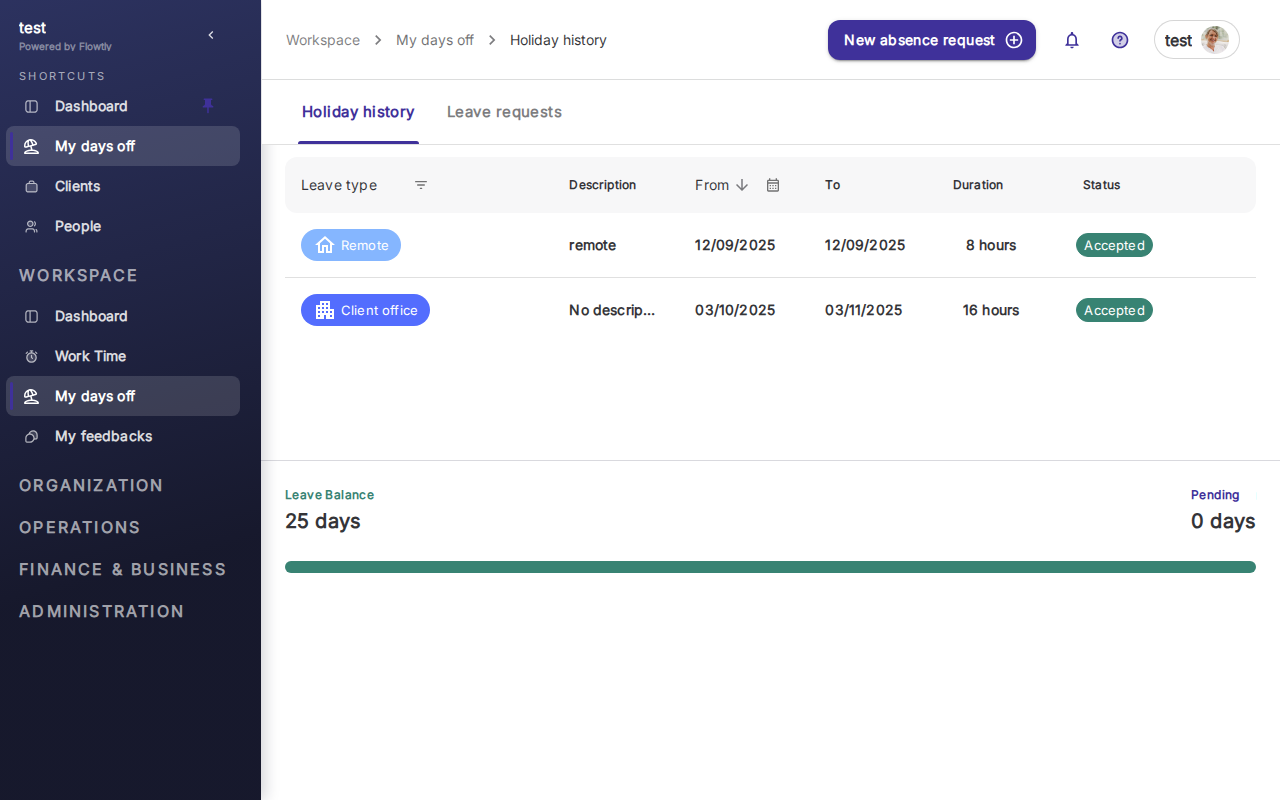
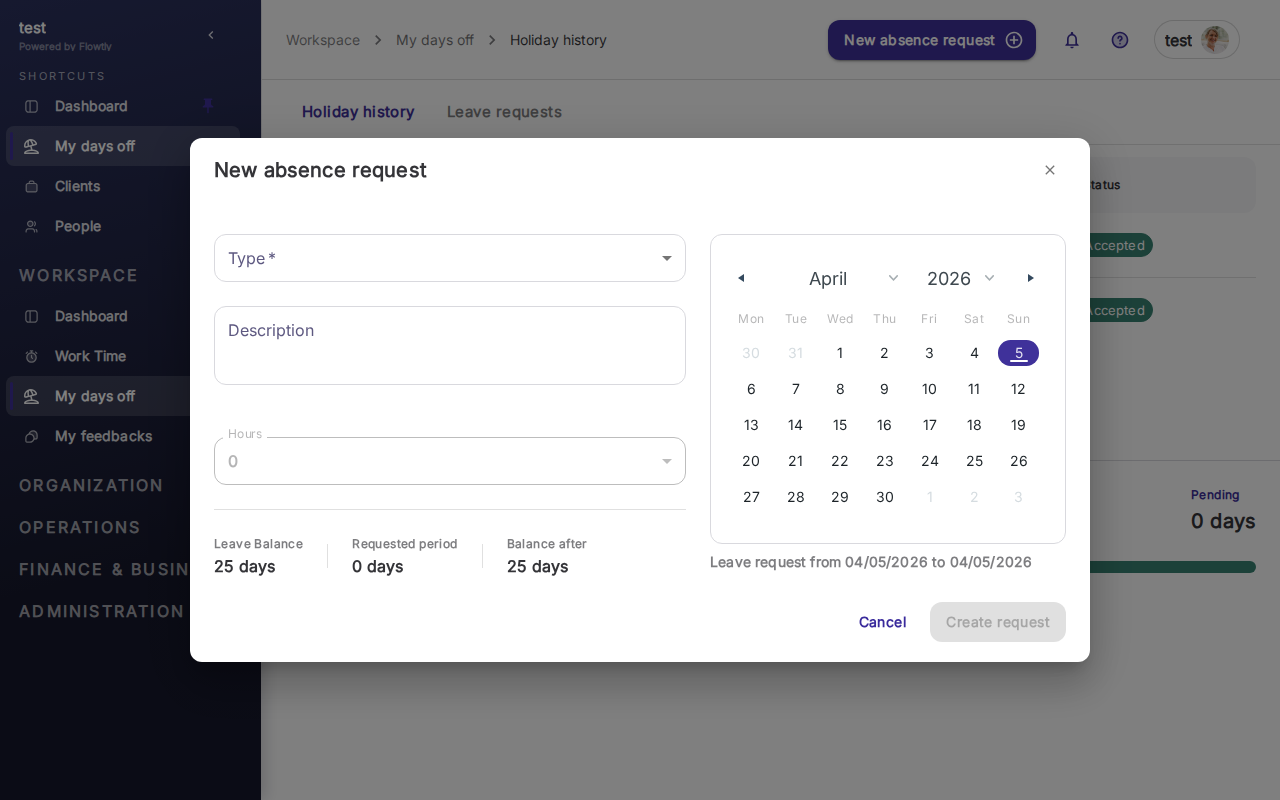
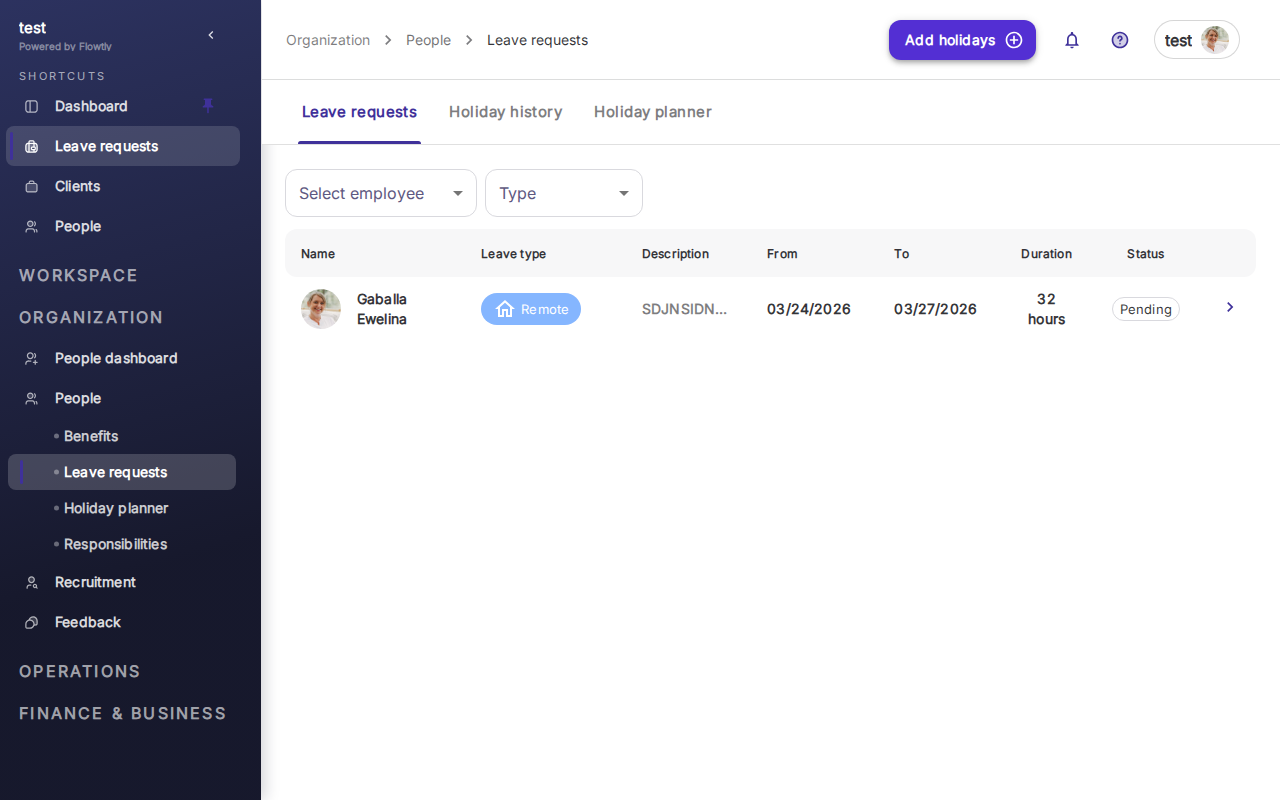
This tutorial will guide you through setting up a robust leave management system within Flowtly, ensuring your organization can handle employee time off with ease and accuracy. You'll learn how to define various holiday types, establish company-wide bank holidays, and configure the automated workflows for efficient leave request approvals. By the end, you'll have a streamlined process that benefits both employees and administrators.
Getting Started with Leave Management
Effective leave management is crucial for operational continuity and employee satisfaction. Flowtly provides the tools to centralize and automate this process, reducing manual errors and administrative burden. Before diving into the specifics, it's good practice to have your company's leave policies clearly defined, including different leave categories, entitlement rules, and approval hierarchies.
1. Defining Custom Holiday Types
Flowtly allows you to configure various types of leave, beyond just standard annual leave, to match your company's specific policies and legal requirements. This flexibility ensures accurate tracking and reporting for all employee absences.
- Navigate to Leave Management Settings:
- From your Flowtly dashboard, click on Settings in the main navigation menu.
- In the
Settingssidebar, locate and click on Leave Management. - Select Holiday Types from the sub-menu.
- Create a New Holiday Type:
- On the
Holiday Typespage, you'll see a list of any existing types. Click the + Add New button (or similar prominent button) to create a new one.
- Configure Holiday Type Details:
- Name: Enter a clear and descriptive name for the holiday type (e.g., "Annual Leave", "Sick Leave", "Unpaid Leave", "Parental Leave").
- Code: Provide a short, unique code for internal identification (e.g., "AL", "SL", "UL").
- Description: (Optional) Add a brief explanation of what this leave type is for.
- Default Entitlement (Days): If this leave type comes with an annual entitlement (like annual leave), enter the number of days. If it's ad-hoc (like sick leave without a strict annual limit) or unpaid, you can leave this as 0 or adjust as needed.
Tip: Consider if entitlement resets annually or rolls over. Flowtly often has advanced settings for carry-over limits, which you can typically find within the specific holiday type's detailed settings or in global leave management settings.
- Requires Approval: Toggle this option On if requests for this leave type need to go through an approval workflow. Most leave types will require approval to ensure proper tracking and resource planning.
- Accrues Automatically: If this leave type accrues over time (e.g., employees earn 1.5 days of annual leave per month), enable this. You'll likely configure the accrual rules in a later step or a dedicated accrual settings section.
- Paid/Unpaid: Select whether this leave type is paid or unpaid. This is critical for payroll integration and accurate record-keeping.
- Can be carried over: If employees can carry over unused days from one year to the next, enable this. You might also specify a maximum carry-over limit.
- Allow Negative Balance: Decide if employees can request more leave than they have accrued or been entitled to. This is usually
Nofor annual leave but might beYesfor certain unpaid leave scenarios, subject to management approval.
- Save Your Holiday Type:
- Once all details are configured, click Save (or Create Holiday Type).
- Repeat for All Necessary Types:
- Go through this process for every distinct type of leave your organization manages.
Note: Flowtly often allows you to assign specific holiday types to certain employee groups or departments. This is useful for companies with varying policies across different regions or roles. Check the
Employee GroupsorDepartmentsettings within the holiday type configuration if available.
2. Configuring Company-Wide Bank Holidays
Bank holidays (public holidays) are typically observed by all employees and do not count against their individual leave entitlements. Properly setting these up ensures that absence tracking is accurate and prevents employees from mistakenly requesting leave on these days.
- Access Bank Holiday Settings:
- Navigate back to Settings > Leave Management.
- Select Bank Holidays from the sub-menu.
- Add a New Bank Holiday:
- On the
Bank Holidayspage, you'll see a list of previously added bank holidays. Click the + Add New button.
- Enter Bank Holiday Details:
- Name: Provide a clear name for the bank holiday (e.g., "New Year's Day", "Christmas Day").
- Date: Select the specific date for the bank holiday using the date picker.
- Applies To: Most bank holidays apply company-wide. However, if your company operates in multiple regions with different bank holidays, Flowtly might allow you to specify which locations, departments, or employee groups this bank holiday applies to. Select the appropriate option.
- Description: (Optional) Add any additional notes.
- Save the Bank Holiday:
- Click Save (or Add Bank Holiday) to record it.
- Repeat for All Annual Bank Holidays:
- Add all relevant bank holidays for the upcoming year. It's good practice to review and update these annually.
Tip: Regularly check official government calendars for bank holiday dates, as these can sometimes change or new ones can be introduced. Updating them in Flowtly promptly prevents confusion.
3. Defining Leave Request Workflows
Workflows automate the approval process for leave requests, ensuring that requests are routed to the correct individuals (managers, HR) in the right sequence. This improves efficiency and reduces manual follow-ups.
- Access Workflow Settings:
- Go to Settings > Leave Management.
- Select Workflows (or "Approval Workflows") from the sub-menu.
- Create or Edit a Workflow:
- You might find default workflows, or you can click + Add New to create a custom one.
- If editing an existing workflow, select it from the list.
- Configure Workflow Details:
- Name: Give the workflow a descriptive name (e.g., "Standard Leave Approval", "HR Leave Approval for Managers").
- Description: (Optional) Explain the purpose of this workflow.
- Applies To: Specify which holiday types this workflow should apply to (e.g., "Annual Leave", "Sick Leave"). You might also be able to link it to specific departments or employee groups.
- Define Approval Steps:
- This is where you set the sequence of approvers. Flowtly typically allows you to add multiple steps.
- Add Step: Click on an + Add Step button.
- Approver Type: Choose who should approve this step:
- Direct Manager: The employee's designated manager in Flowtly.
- Specific User: A particular individual (e.g., a specific HR representative).
- Role/Department Head: The head of the employee's department or a specific role.
- HR Manager: A user designated as an HR manager.
- Approval Type (Optional): Some systems allow you to specify if all approvers in a step must approve, or just one.
- Add More Steps: If a request needs multi-level approval (e.g., direct manager first, then HR), add another step and configure it accordingly.
Tip: Keep workflows as simple as possible while meeting your policy requirements. Too many steps can slow down approvals and frustrate employees. Ensure that all designated approvers are properly set up within Flowtly with the correct roles and reporting lines.
- Set Up Notifications:
- Often, within the workflow settings or in a separate
Emails & Notificationssection, you can configure automated emails to be sent when: - A request is submitted (to approver).
- A request is approved/rejected (to employee).
- A request is approved (to HR/payroll).
- Save Your Workflow:
- Once all approval steps and settings are configured, click Save.
Note: After creating workflows, you usually need to link them to specific holiday types or employee groups. Go back to
Holiday Typessettings, edit each type, and select the appropriate workflow from a dropdown menu.
4. Managing Employee Leave Requests
Once holiday types and workflows are set up, employees can submit leave requests, and managers/HR can process them efficiently.
- Employee Submission:
- Employees typically submit requests through their own Flowtly portal or mobile app, selecting the holiday type, dates, and adding any necessary comments.
- Reviewing Requests (for Managers/Admins):
- Dashboard: Pending leave requests often appear on your Flowtly dashboard or a dedicated
Leave Requestssection. - Notifications: You'll receive email notifications (if configured) when a new request is awaiting your approval.
- Accessing Requests: Click on a pending request to view its details: employee name, leave type, dates, duration, remaining entitlement, and any comments.
- Approving or Rejecting Requests:
- Review the request details and consider factors like team coverage, project deadlines, and employee entitlement.
- Click Approve to advance the request to the next step in the workflow or finalize it if you are the last approver.
- Click Reject if the request cannot be granted. Always provide a clear reason for rejection in the comments section.
- Click Request More Info if you need additional details from the employee before making a decision.
Tip: Flowtly often provides a calendar view that shows all approved and pending leave for your team, helping you identify potential staffing conflicts before approving new requests. Use this feature to make informed decisions.
Summary and Next Steps
You've now learned how to configure various holiday types, establish company-wide bank holidays, and define automated workflows for leave requests within Flowtly. This foundational setup will significantly streamline your organization's leave management processes, ensuring accuracy, transparency, and compliance.
Your next steps should involve:
- Communicating the new leave management process to your employees.
- Conducting a test run with a few sample requests to ensure workflows are functioning as expected.
- Regularly reviewing your leave policies and updating Flowtly settings as needed.