Budgets

Streamline Expense Tracking: Link Bank Transactions to Budgets in Flowtly

In today's fast-paced business environment, maintaining accurate and real-time financial oversight is crucial for success. Flowtly empowers you to achieve this by seamlessly connecting your bank tr...

Streamline Expense Tracking: Link Bank Transactions to Budgets in Flowtly

In today's fast-paced business environment, maintaining accurate and real-time financial oversight is crucial for success. Flowtly empowers you to achieve this by seamlessly connecting your bank transactions directly to your predefined budgets. This tutorial will guide you through the process, enabling you to gain granular control over your spending, track expenses against specific financial plans, and make informed decisions with confidence.

---

Prerequisites

Before you begin, ensure you have:

  • An active Flowtly account with appropriate permissions to manage expenses and budgets.
  • Your bank accounts successfully connected to Flowtly and transactions imported. If not, please refer to the Flowtly documentation on bank integrations.
  • Budgets already created within Flowtly that you intend to link transactions to. For guidance on setting up budgets, consult the Budgets knowledge base article.

---

Step-by-Step Guide: Linking Bank Transactions to Budgets

1. Navigate to Your Bank Transactions

The journey to streamlined expense tracking begins in Flowtly's financial section, where all your imported bank activities reside.

  • Access the Financial Dashboard: From your Flowtly home screen, locate and click on the "Costs" or "Expenses" module in the main navigation menu. This will typically lead you to a dashboard providing an overview of your financial data.

Navigating to this section regularly will help you keep track of all incoming and outgoing funds, providing a holistic view of your financial standing.

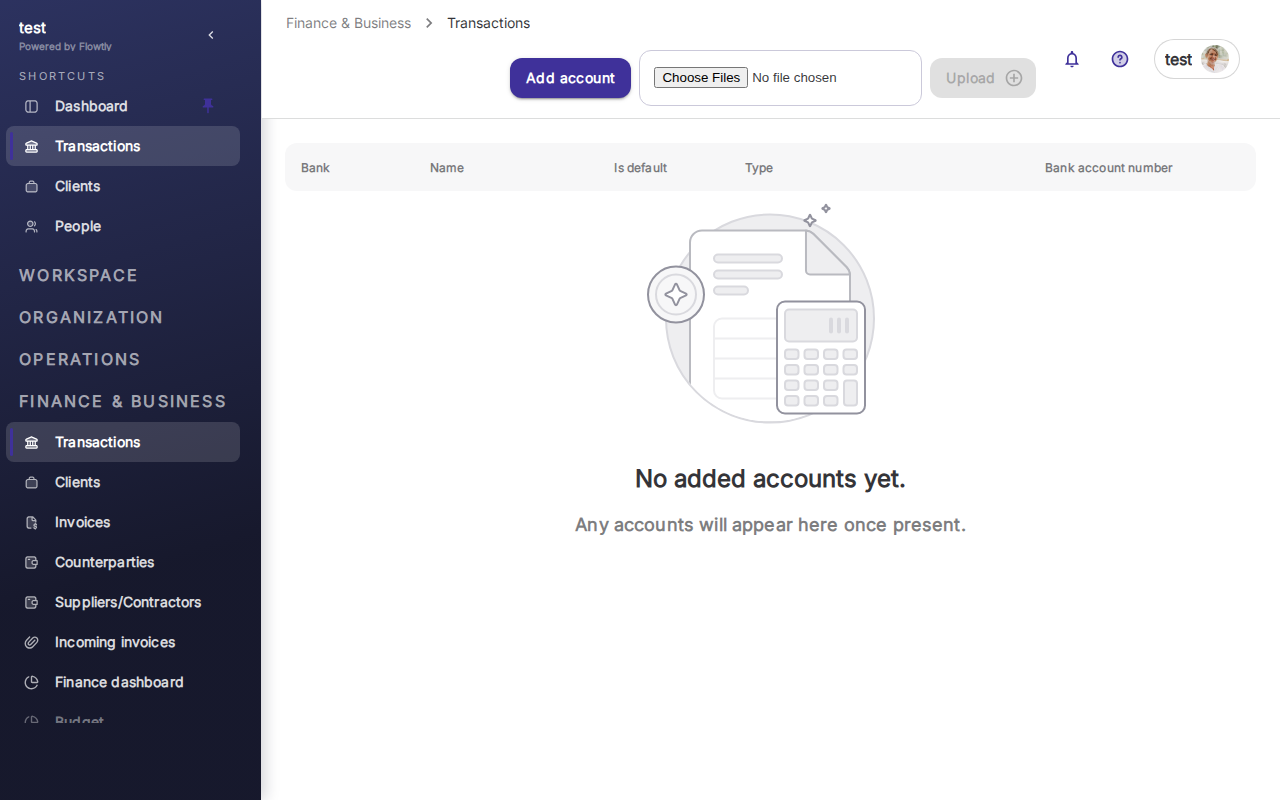
  • Select "Bank Transactions": Within the "Costs" or "Expenses" module, you'll find various sub-sections. Click on "Bank Transactions" to view a comprehensive list of all transactions imported from your connected bank accounts.

You might see different statuses next to each transaction. Look for indicators like "Uncategorized," "Unlinked," or similar tags, which signify transactions that still need your attention for proper budget allocation.

2. Identify and Select an Unlinked Transaction

Now that you're viewing your bank transactions, the next step is to pinpoint those that haven't yet been allocated to a budget.

  • Filter for Unlinked Transactions (Optional but Recommended): To efficiently find transactions that need linking, use the filtering options available. Look for filters such as "Status," "Budget Status," or "Linked to Budget." Select "Unlinked" or "Uncategorized" to narrow down the list.

Regularly reviewing your unlinked transactions is a critical practice for maintaining accurate financial records and ensuring your budgets reflect real-time spending. This prevents discrepancies and gives you a true picture of your financial health.

  • Select the Transaction: Browse through the filtered list and click on the specific bank transaction you wish to link to a budget. This action will typically open a detailed view or an editing panel for that transaction.
3. Initiate the Linking Process

Once you've selected a transaction, Flowtly provides an intuitive way to associate it with a budget.

  • Locate the "Link to Budget" Option: Within the transaction's detail view or editing panel, look for an option labeled "Link to Budget," "Allocate to Budget," or similar. This might be a button, a dropdown menu, or a field you can click to activate.

Some transactions might be partially linked, or you might need to split a single transaction across multiple budgets. Flowtly often provides flexibility here, allowing you to allocate specific amounts if a transaction covers expenses for different budgetary categories.

4. Choose the Target Budget

This is where you connect the specific expense to its intended financial plan.

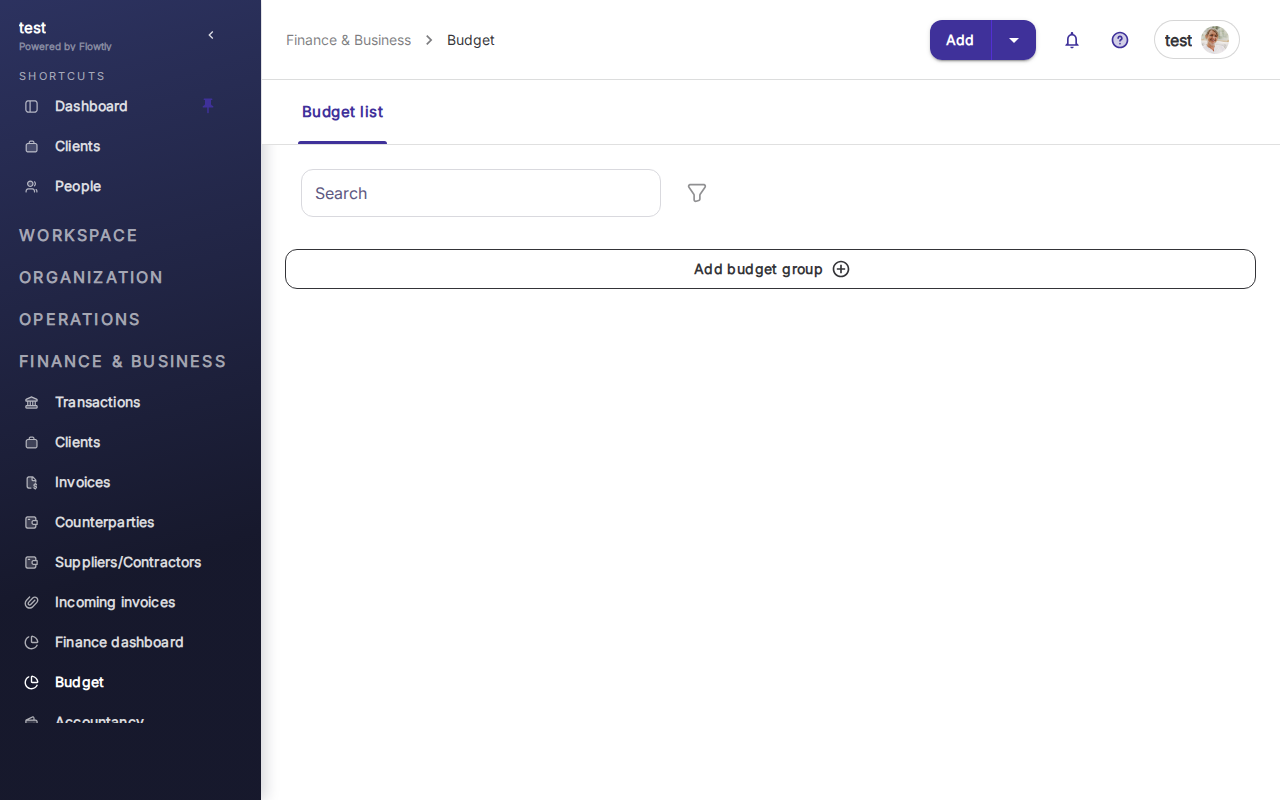
  • Select from Your Budget List: A dropdown menu or a search field will appear, displaying all active budgets you have created in Flowtly. Carefully review the options and select the budget that most accurately represents the purpose of this transaction.

It's crucial to select the correct budget to maintain the integrity of your financial tracking. If your budgets are clearly defined (e.g., "Marketing Campaign Q1," "Office Supplies," "Software Subscriptions"), this step becomes much easier.

If you find yourself frequently linking similar transactions to the same budget, consider creating robust budget categories or even exploring Flowtly's potential for automation rules based on vendors or transaction descriptions.

  • Allocate the Amount (If Applicable): Depending on the transaction and your budget structure, you might need to specify the exact amount from the transaction to be linked to the chosen budget.
  • Full Allocation: If the entire transaction belongs to one budget, confirm the full amount.
  • Partial Allocation/Splitting: If the transaction covers multiple expenses across different budgets, you may have the option to enter a partial amount for the current budget. You would then repeat the linking process for the remaining amount, allocating it to other budgets. This ensures every penny is accounted for.
5. Confirm and Save the Link

The final step is to save your changes, solidifying the connection between your bank transaction and your budget.

  • Review Details: Before finalizing, take a moment to review the selected budget and the allocated amount to ensure accuracy.
  • Save Changes: Click on the "Save," "Apply," or "Confirm" button to complete the linking process. The transaction's status should now update, indicating that it has been successfully linked or partially linked to a budget.

After linking, Flowtly will automatically update the selected budget's status, showing the impact of this new expense on your available funds. This provides real-time insights into your spending and helps prevent budget overruns.

Best Practices for Budget-Transaction Linking

  • Regular Review: Make it a habit to regularly check your "Bank Transactions" section for unlinked items. Proactive linking ensures your budget reports are always current and accurate.
  • Detailed Budgets: Create granular budgets that reflect your actual spending categories. The more specific your budgets, the easier and more accurate the linking process will be. Refer to the Budgets article for tips on effective budget creation.
  • Utilize Notes/Descriptions: When linking, use the transaction's description field (if editable) to add context, especially for unusual or multi-purpose expenses. This helps with future auditing and understanding.
  • Leverage Audit Trails: In case of discrepancies or questions, remember that Flowtly's System Logs & Audit Trail can track changes made to transactions and budget allocations, providing transparency and accountability.

Summary and Next Steps

By following these steps, you've successfully learned how to link your bank transactions to specific budgets in Flowtly, a fundamental step towards achieving robust cost control and accurate financial reporting. This capability transforms raw transaction data into actionable insights, allowing you to monitor spending, identify trends, and ensure your financial resources are deployed effectively.

Continue to regularly link your transactions, refine your budget categories, and leverage Flowtly's reporting features to gain even deeper insights into your company's financial health. With real-time budget tracking, you're empowered to make smarter, more strategic financial decisions.

---

Learn more

More tutorials

Whatsapp