Security

Fortify Flowtly Access: Step-by-Step Guide to MFA & Trusted Devices

Protecting your company's valuable data is paramount in today's digital landscape. This tutorial will guide you through activating Multi-Factor Authentication (MFA) and managing trusted devices wit...

Fortify Flowtly Access: Step-by-Step Guide to MFA & Trusted Devices

Protecting your company's valuable data is paramount in today's digital landscape. This tutorial will guide you through activating Multi-Factor Authentication (MFA) and managing trusted devices within Flowtly, significantly enhancing the security of your employee accounts and sensitive information. By the end, you'll have a robust system in place to fortify access and streamline secure logins.

Elevating Security with Multi-Factor Authentication (MFA)

Multi-Factor Authentication (MFA) adds an essential layer of security beyond just a password. Even if a malicious actor obtains an employee's password, they won't be able to access the account without the second factor – typically a code from a mobile authenticator app. Flowtly makes it easy to implement this crucial security measure.

Part 1: Administrator - Enabling MFA for Your Organization

As an administrator, you have the power to enforce MFA policies across your Flowtly instance, ensuring consistent security for all users.

  • Navigate to Security Settings:
  • Log in to your Flowtly administrator account.
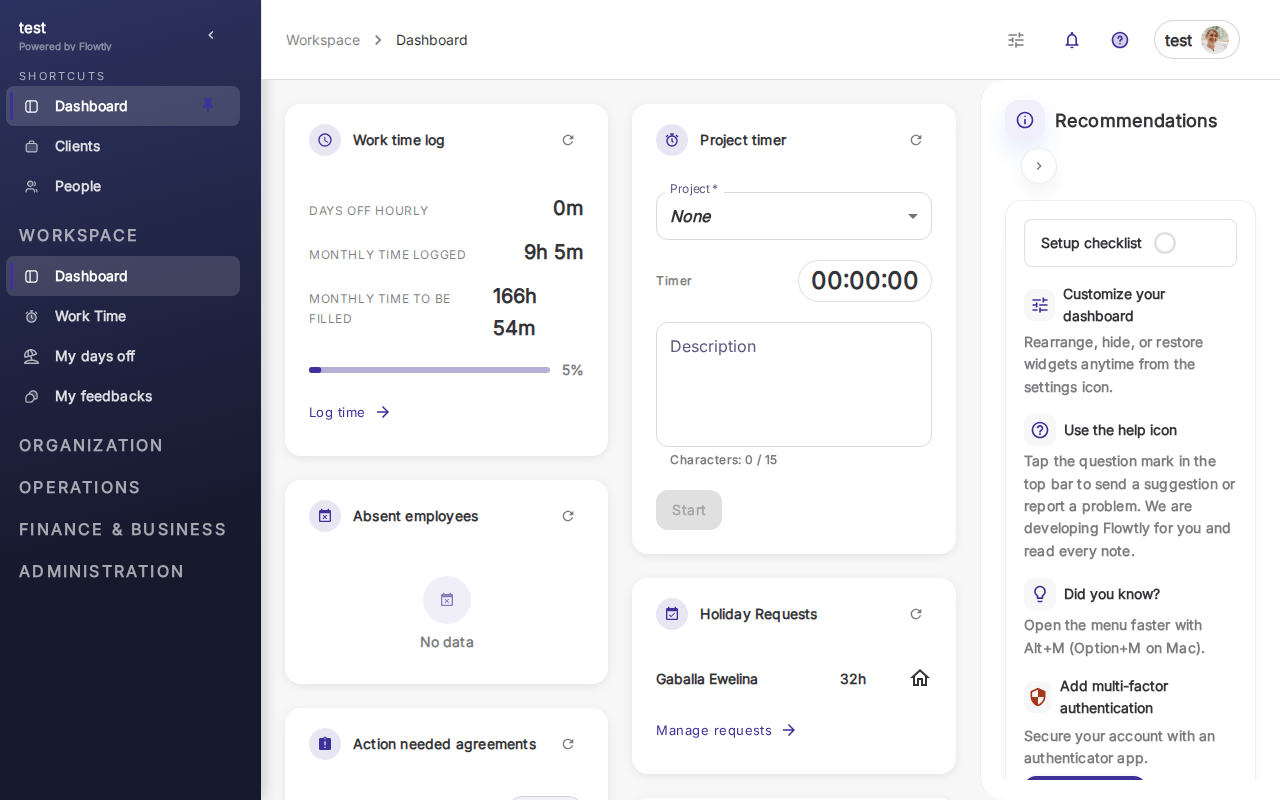
  • From the main dashboard, locate and click on Settings in the sidebar navigation.
  • Within the Settings menu, find and select Security or Authentication Settings. The exact path might vary slightly based on your Flowtly version, but it's typically under a section related to system security or user management.
  • Enable MFA Policy:
  • Once in the Security or Authentication Settings, look for an option related to "Multi-Factor Authentication" or "2-Step Verification."
  • You'll likely see options to:
  • Require MFA for all users: This is the most secure option, making MFA mandatory for every employee.
  • Enable MFA as optional: Users can choose whether to activate it, which is less secure but offers flexibility during rollout.
  • Require MFA for specific roles/groups: This allows you to enforce MFA for sensitive roles (e.g., finance, HR, other admins) while offering flexibility for others.
  • Select the policy that best suits your organization's security needs. For maximum protection, requiring MFA for all users is highly recommended.

Tip: Before making MFA mandatory for all users, communicate the upcoming change clearly and provide instructions to your employees. This proactive approach minimizes disruption and ensures a smooth transition. Consider a phased rollout if your organization is large or has users less familiar with MFA.

  • Configure MFA Methods (if applicable):
  • Flowtly typically supports authenticator apps (like Google Authenticator, Microsoft Authenticator, Authy) as the primary MFA method due to their superior security compared to SMS.
  • Verify that "Authenticator App" is selected or enabled. Some systems might offer SMS as an alternative, but it's generally less secure and prone to SIM-swapping attacks. Stick to authenticator apps when possible.
  • Save Your Changes:
  • After configuring the MFA policy, click the Save or Apply Changes button to activate the settings.

Part 2: Employee - Setting Up Your MFA

Once MFA is enabled by an administrator, individual employees will need to set it up on their accounts. This process usually happens during their next login.

  • Log In to Flowtly (First Time with MFA enabled):
  • Go to the Flowtly login page as usual and enter your username and password.
  • After entering your credentials, Flowtly will detect that MFA is required for your account.
  • Initiate MFA Setup:
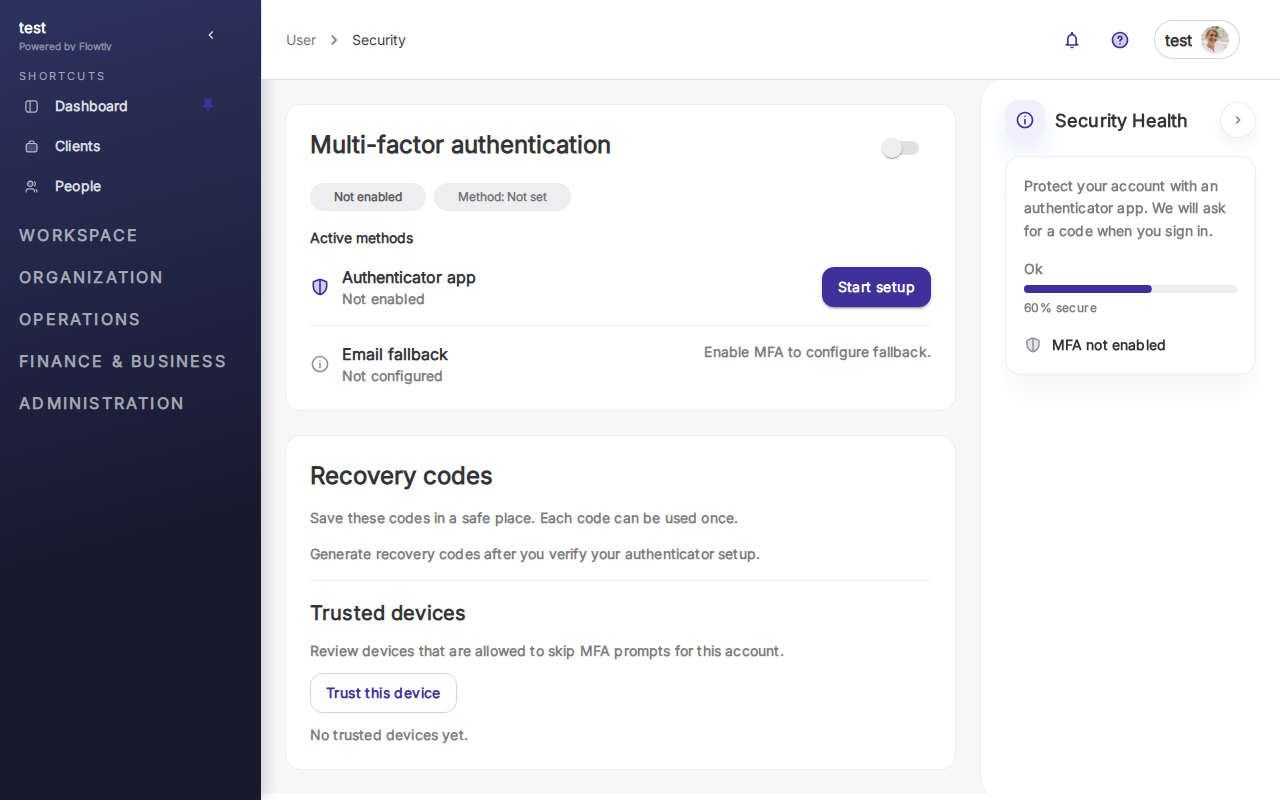
  • You will be prompted to set up your Multi-Factor Authentication. This usually involves clicking a "Set up MFA" or "Configure 2-Step Verification" button.
  • Choose Your Authenticator App:
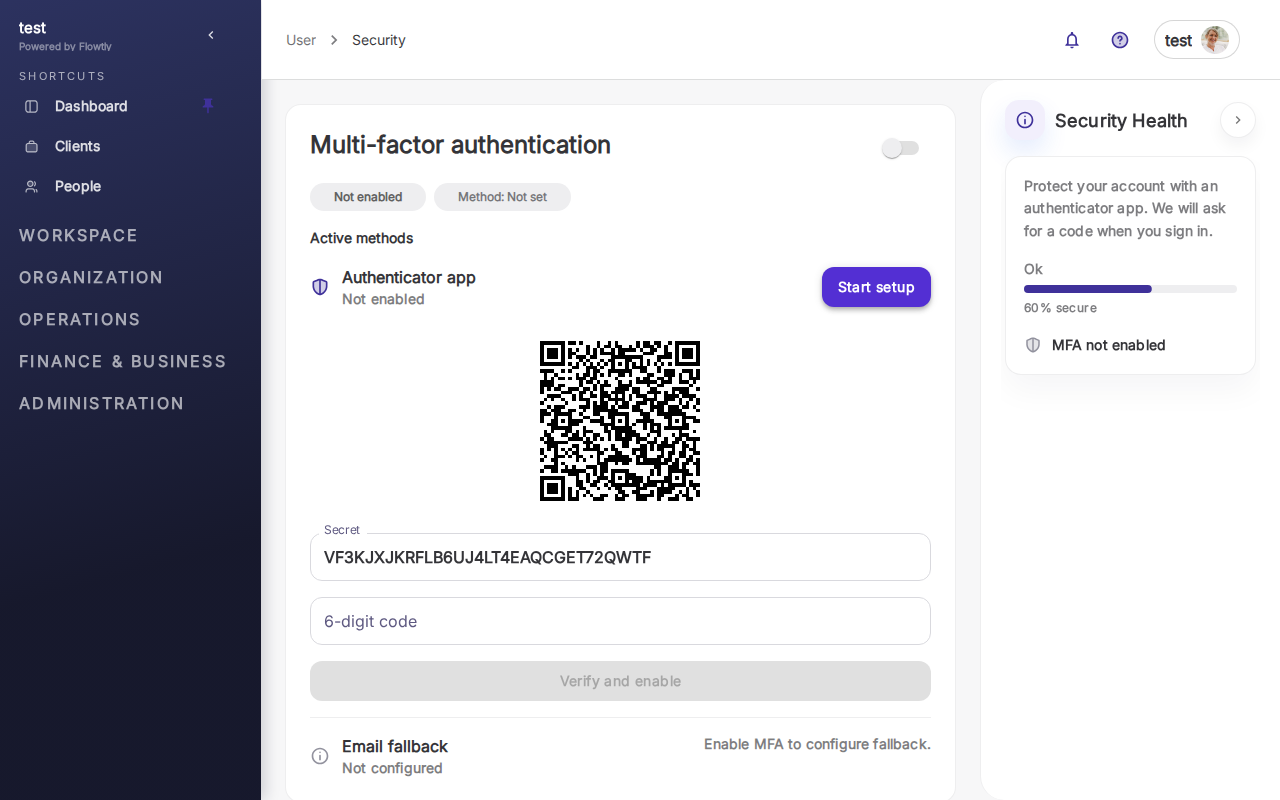
  • Flowtly will typically display a QR code.
  • On your mobile device: Download and open a trusted authenticator app (e.g., Google Authenticator, Microsoft Authenticator, Authy) from your device's app store if you don't already have one.
  • Within the authenticator app, look for an option to "Add a new account" or scan a QR code (often represented by a '+' icon or camera symbol).
  • Scan the QR Code:
  • Use your authenticator app to scan the QR code displayed on your Flowtly screen.
  • The app will automatically add a new entry for your Flowtly account and start generating time-based one-time passwords (TOTPs).

Tip: If you cannot scan the QR code (e.g., no camera, scanning issues), Flowtly usually provides a "Manual entry" or "Setup Key" option. You can type this long alphanumeric code directly into your authenticator app.

  • Enter the Verification Code:
  • After scanning the QR code, your authenticator app will display a 6-digit code for Flowtly. This code changes every 30-60 seconds.
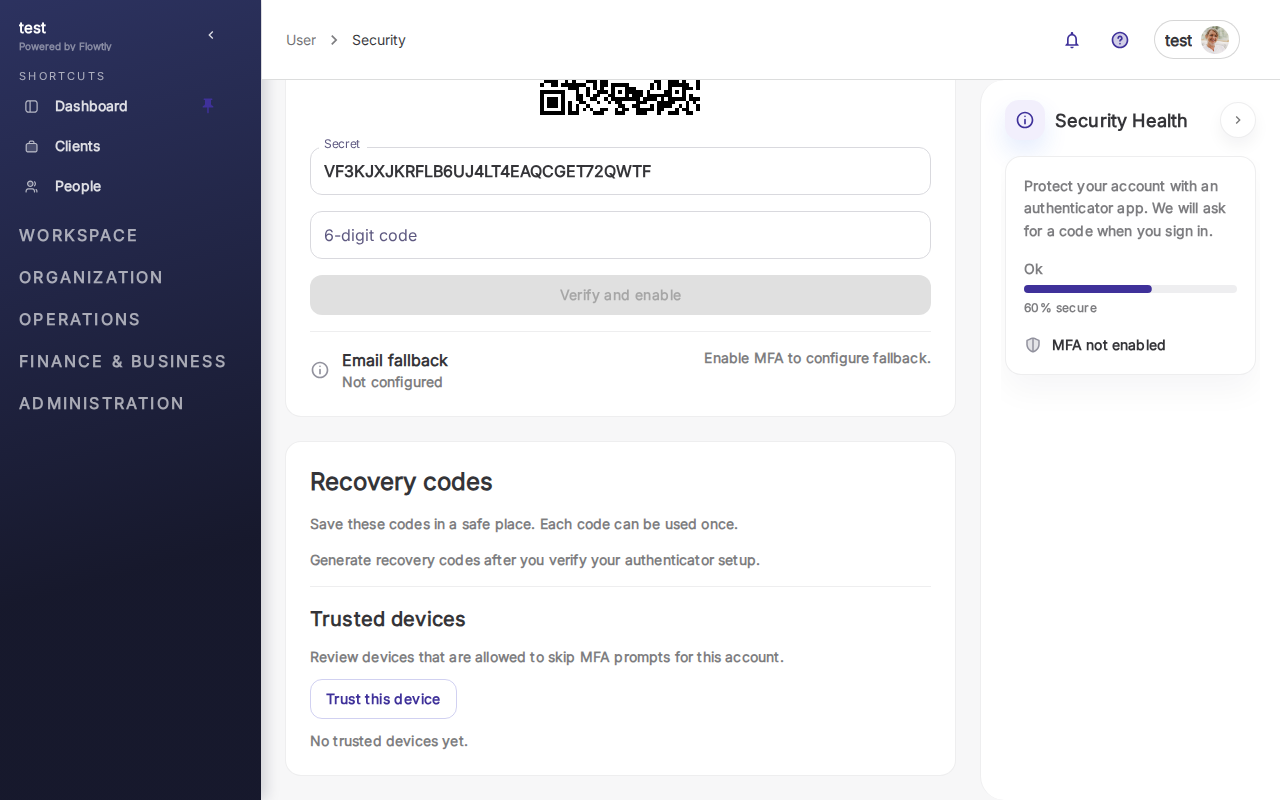
  • Enter this current 6-digit code into the verification field on your Flowtly setup screen.
  • Click Verify or Confirm.
  • Save Your Backup Codes (Crucial!):
  • Flowtly will then display a list of backup codes. These codes are vital! Each code can be used once to log in if you lose access to your authenticator app (e.g., lost phone, app accidentally deleted).
  • Download, print, or carefully write down these backup codes.
  • Store them in a secure, offline location separate from your phone and computer. Do not store them in an unsecured cloud document or on your desktop.

Warning: Without your authenticator app or backup codes, regaining access to your Flowtly account can be a lengthy and complicated process involving administrator intervention. Treat your backup codes like physical keys.

  • Complete Setup:
  • Once you've safely stored your backup codes, confirm you've done so, and click Finish or Proceed to Flowtly.
  • Your MFA is now active! From now on, every time you log in to Flowtly, you'll enter your password and then a code from your authenticator app.

Streamlining Access with Trusted Devices

Trusted devices allow you to bypass the MFA step for a specific period on devices you frequently use and know are secure. This offers a balance between convenience and security.

Part 3: Employee - Marking a Device as Trusted

After successfully authenticating with your MFA, you'll often have the option to mark your current device as trusted.

  • Log In with MFA:
  • Complete the standard login process: username, password, and the MFA code from your authenticator app.
  • Trust This Device Option:
  • Immediately after a successful MFA login, Flowtly will typically present a checkbox or button that says something like "Trust this device," "Remember this browser for 30 days," or "Don't ask for MFA on this device again."
  • Check this box if you are using a personal, secure device (e.g., your work laptop, home desktop) that only you have access to.

Important: Never mark a public computer, a shared device, or a computer that isn't fully secured as a trusted device. This would bypass MFA for future logins, leaving your account vulnerable. Only trust devices where you are confident in their security.

  • Confirm Trust:
  • Once checked, Flowtly will remember your device, and for a set period (e.g., 30, 60, or 90 days), you won't be prompted for an MFA code on that specific device. You'll only need your password.
  • After the trusted period expires, or if you clear your browser's cookies/cache, you will be prompted for MFA again.

Part 4: Administrator - Managing Trusted Devices

Administrators can monitor and revoke trusted devices, which is essential if an employee's device is lost, stolen, or compromised.

  • Access User Management:
  • Log in to your Flowtly administrator account.
  • Navigate to Settings and then Employees or Users.
  • Find the specific employee whose trusted devices you wish to manage.
  • View and Revoke Trusted Devices/Sessions:
  • Within the employee's profile or a dedicated security section for that user, look for options like "Active Sessions," "Trusted Devices," or "Logged-in Devices."
  • This section will list devices that the user has marked as trusted, along with details like the device type, browser, IP address, and the date it was trusted.
  • For each trusted device, there should be an option to Revoke, Log Out, or Delete.
  • Click Revoke for any device that is no longer secure, unfamiliar, or belongs to a former employee.

Best Practice: Regularly review trusted devices, especially for high-privilege accounts. If an employee leaves the company or reports a lost device, revoking all their active and trusted sessions should be part of the offboarding or incident response checklist. This ensures immediate cessation of access, even if their password was compromised.

Summary & Next Steps

By activating Multi-Factor Authentication and judiciously managing trusted devices, you've significantly strengthened your Flowtly account security. MFA provides a critical barrier against unauthorized access, while trusted devices offer a convenient and secure way for regular users to access the platform. Encourage all employees to embrace these features for a safer, more secure Flowtly environment.

Regularly review your security settings, educate your team on best practices for password management and MFA, and always be vigilant about unusual login activities.

Learn more

More tutorials

Whatsapp