Property booking

Seamless Resource Management: How to Set Up & Book Flowtly Properties

This tutorial will guide you through the process of configuring and managing bookable properties within Flowtly, from setting up different resource types to empowering your team to seamlessly reser...

This tutorial will guide you through the process of configuring and managing bookable properties within Flowtly, from setting up different resource types to empowering your team to seamlessly reserve them. By the end, you'll have a robust system in place for efficient resource allocation, whether it's for meeting rooms, company vehicles, or specialized equipment.

---

Understanding Flowtly Properties

Flowtly's Property Management feature is designed to help organizations keep track of and manage shared physical assets or locations that can be booked by employees. This includes everything from meeting rooms and hot desks to company cars, tools, or specialized equipment. By centralizing these resources, Flowtly helps prevent double bookings, streamlines the reservation process, and provides clear visibility into resource availability.

Part 1: Setting Up Your Bookable Properties

Before your team can start booking, you first need to define the properties available for reservation. This involves creating categories and then adding individual properties with their specific details and booking rules.

Step 1: Accessing Property Management
  • Log in to Flowtly as an administrator or a user with property management permissions.
  • Navigate to the Settings menu, usually found in the main navigation sidebar or header.
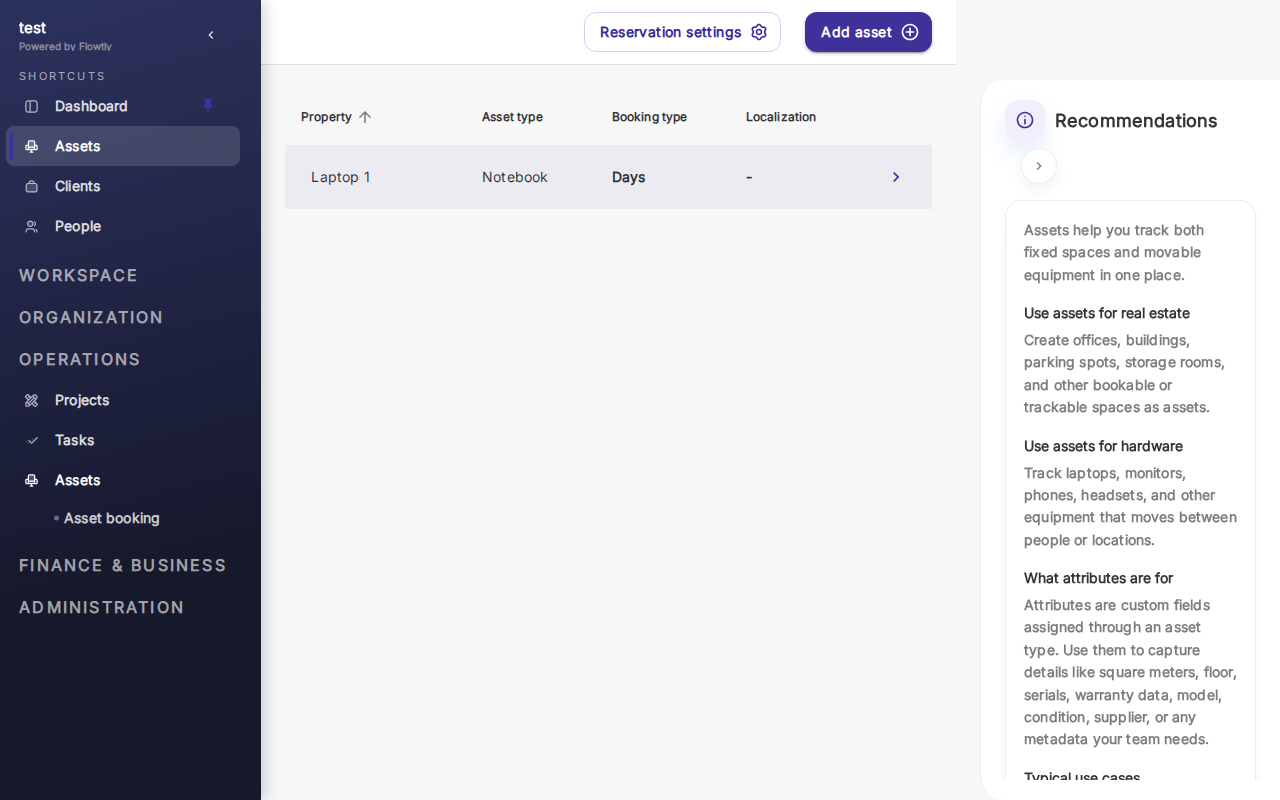
  • From the Settings menu, select Property Management. This section is your central hub for configuring all bookable resources.
Step 2: Creating Property Categories

Categories help organize your properties, making them easier for employees to find and filter. Examples include "Meeting Rooms," "Company Vehicles," "Office Equipment," or "Project Spaces."

  • In the Property Management section, look for an option to "Manage Categories" or "Add New Category."
  • Click "Add Category."
  • Enter a Category Name (e.g., "Meeting Rooms").
  • Optionally, add a Description to clarify what types of properties belong to this category.
  • Click "Save" or "Add." Repeat this process for all relevant categories your organization uses.

Tip: Think broadly about the types of resources your team commonly shares. Grouping similar items together under a category will significantly improve the user experience during booking.

Step 3: Adding Individual Properties

Now that you have categories, you can add the specific items or locations that employees will book.

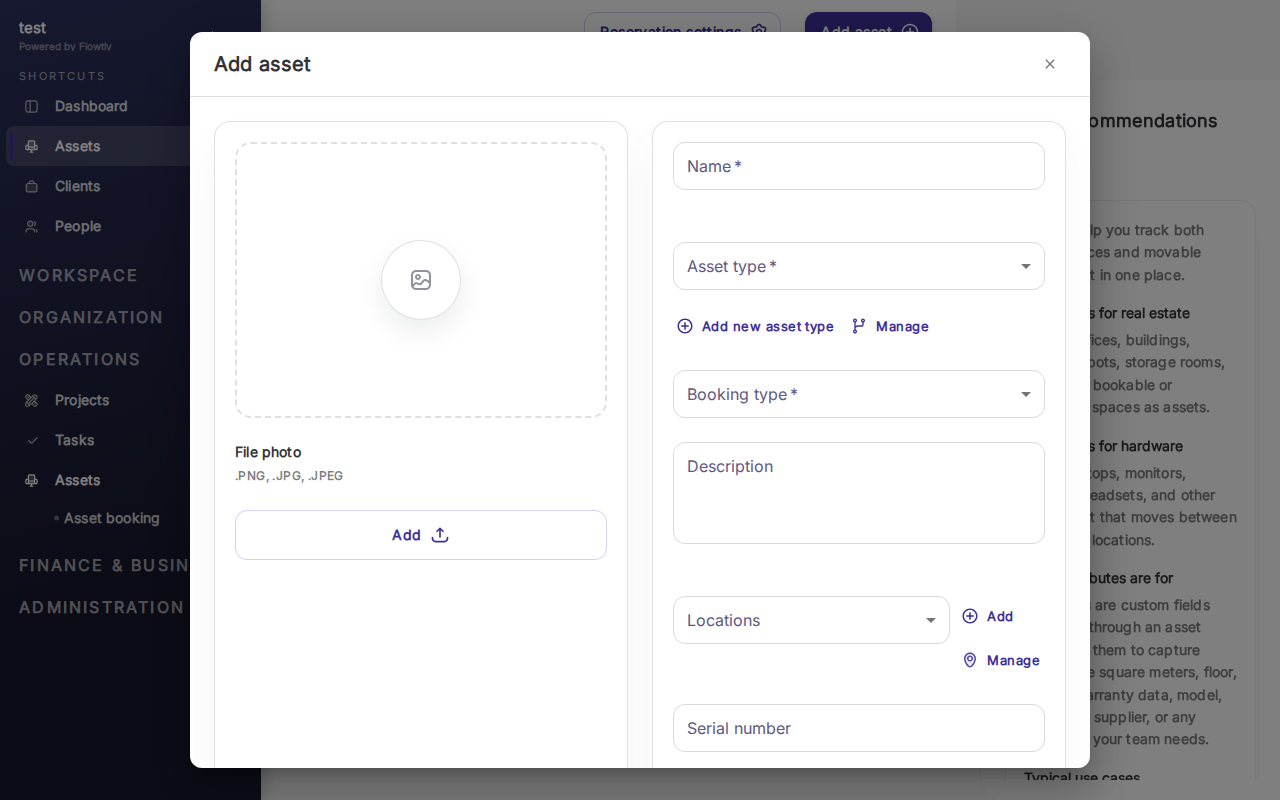
  • From the Property Management section, select "Add New Property."
  • Property Details:
  • Name: Give the property a clear, identifiable name (e.g., "Apollo Meeting Room," "Company Car #1," "Projector P-500").
  • Category: Select the appropriate category you created in the previous step (e.g., "Meeting Rooms").
  • Description: Provide any relevant information, such as capacity, features (e.g., "includes whiteboard and video conferencing," "suitable for 6 people"), or location specifics (e.g., "located on the 3rd floor").
  • Location/Address: If applicable, specify the physical location.
  • Capacity: For spaces like meeting rooms, define the maximum number of people it can accommodate.
  • Image (Optional): Upload an image of the property to help users identify it easily.
  • Availability & Booking Rules:
  • Active: Ensure the property is marked as "Active" for it to be bookable.
  • Requires Approval: Decide if bookings for this property need to be approved by a manager or specific person. If yes, select the approver(s) or approval group.
  • Minimum Booking Duration: Set the shortest time a property can be booked (e.g., 30 minutes, 1 hour).
  • Maximum Booking Duration: Set the longest time a property can be booked (e.g., 4 hours, 1 day).
  • Lead Time: Specify how far in advance a property must be booked (e.g., "1 hour before," "24 hours before").
  • Blackout Periods: Configure any recurring or one-off times when the property is unavailable (e.g., weekly maintenance, specific holidays).
  • Assigned Custodian/Manager (Optional): You can assign a specific employee responsible for the property's maintenance or management.
  • Click "Save Property" to finalize the creation.

Note: The "Requires Approval" setting is critical for high-demand or high-value assets. When enabled, a booking request will be sent to the designated approver, and the booking will only be confirmed once approved.

Step 4: Reviewing and Editing Properties

After adding properties, you can always go back to the Property Management section to view a list of all configured properties. From here, you can:

  • Edit any property details, booking rules, or availability.
  • Deactivate a property if it's no longer available for booking without permanently deleting its history.
  • Delete a property (use with caution, as this usually removes associated booking history).

Part 2: Booking Flowtly Properties

Once properties are set up, your team can start reserving them. The booking process is designed to be intuitive and quick.

Step 1: Accessing the Property Booking Interface
  • Log in to Flowtly as an employee.
  • Look for a "Booking" or "Properties" section in your main Flowtly dashboard or navigation menu. This is typically distinct from the administrative Property Management area.
Step 2: Searching for Available Properties
  • On the booking page, you'll usually see options to filter properties by:
  • Category: Select "Meeting Rooms" to only see available meeting rooms.
  • Date & Time: Specify the desired date and time range for your booking.
  • Capacity: For meeting rooms, filter by the number of attendees.
  • Location: If your properties are spread across different offices or buildings.
  • Once filters are applied, Flowtly will display a list of properties that match your criteria and are available during your selected period.

Tip: Use the calendar view if available. This often provides a visual representation of property availability, making it easier to spot open slots.

Step 3: Creating a Booking Request
  • From the list of available properties, click on the property you wish to book (e.g., "Apollo Meeting Room").
  • A detailed view of the property will appear, often showing its full booking calendar.
  • Select your desired start and end times on the calendar or by using time pickers. The system will typically highlight available slots.
  • Booking Details:
  • Purpose/Reason: Briefly explain why you are booking the property (e.g., "Team Sync Meeting," "Client Presentation," "Project Work Session").
  • Attendees (Optional): You might be able to invite other Flowtly users to your booking. This can integrate with their calendars.
  • Associated Project (Optional): Link the booking to a specific project if your organization uses Flowtly's project management features.
  • Review all the booking details to ensure they are correct.
  • Click "Submit Booking Request."
Step 4: Managing Bookings and Approvals
  • Instant Confirmation: If the property does not require approval, your booking will be confirmed instantly, and you'll typically receive an email notification. The property will now show as booked on its calendar.
  • Pending Approval: If approval is required, your booking status will show as "Pending Approval." An email notification will be sent to the designated approver(s). You will receive a confirmation once the booking is approved or a notification if it's declined.
  • Viewing Your Bookings: You can usually find a section like "My Bookings" or "My Reservations" within the booking interface to see all your upcoming and past reservations.
  • Modifying/Cancelling Bookings: From "My Bookings," you can typically select an upcoming booking to either modify its details (if rules allow) or cancel it entirely. Timely cancellations are courteous and free up resources for others.

Note: If you need to frequently book the same property for recurring events, check if Flowtly offers a recurring booking option. This can save you a lot of time.

Summary and Next Steps

You've successfully learned how to set up categories and individual properties within Flowtly, defining their details and booking rules. Furthermore, you now understand the process for employees to efficiently search for and book these resources, managing their reservations with ease.

The next step is to communicate these new capabilities to your team. Encourage them to explore the booking interface and familiarize themselves with the available properties. Regular review of property usage reports can also help you optimize your resource allocation and identify needs for additional assets or adjustments to existing booking rules.

Learn more

More tutorials

Whatsapp