Agreements

Mastering Employee Agreements: From Contract Creation to Management

This tutorial will guide you through the comprehensive process of setting up, customizing, and managing employee agreements within the Flowtly platform. By the end of this guide, you'll be adept at...

This tutorial will guide you through the comprehensive process of setting up, customizing, and managing employee agreements within the Flowtly platform. By the end of this guide, you'll be adept at formalizing your team's working relationships efficiently, ensuring clarity, compliance, and streamlined HR operations.

1. Navigating to the Agreements Module

Your journey to mastering employee agreements in Flowtly begins by accessing the dedicated Agreements module. This central hub is where you'll create templates, manage individual employee contracts, and track their statuses.

  • Log in to your Flowtly account.
  • From the main navigation menu, locate and click on HR Management.
  • Within the HR Management section, select Agreements.

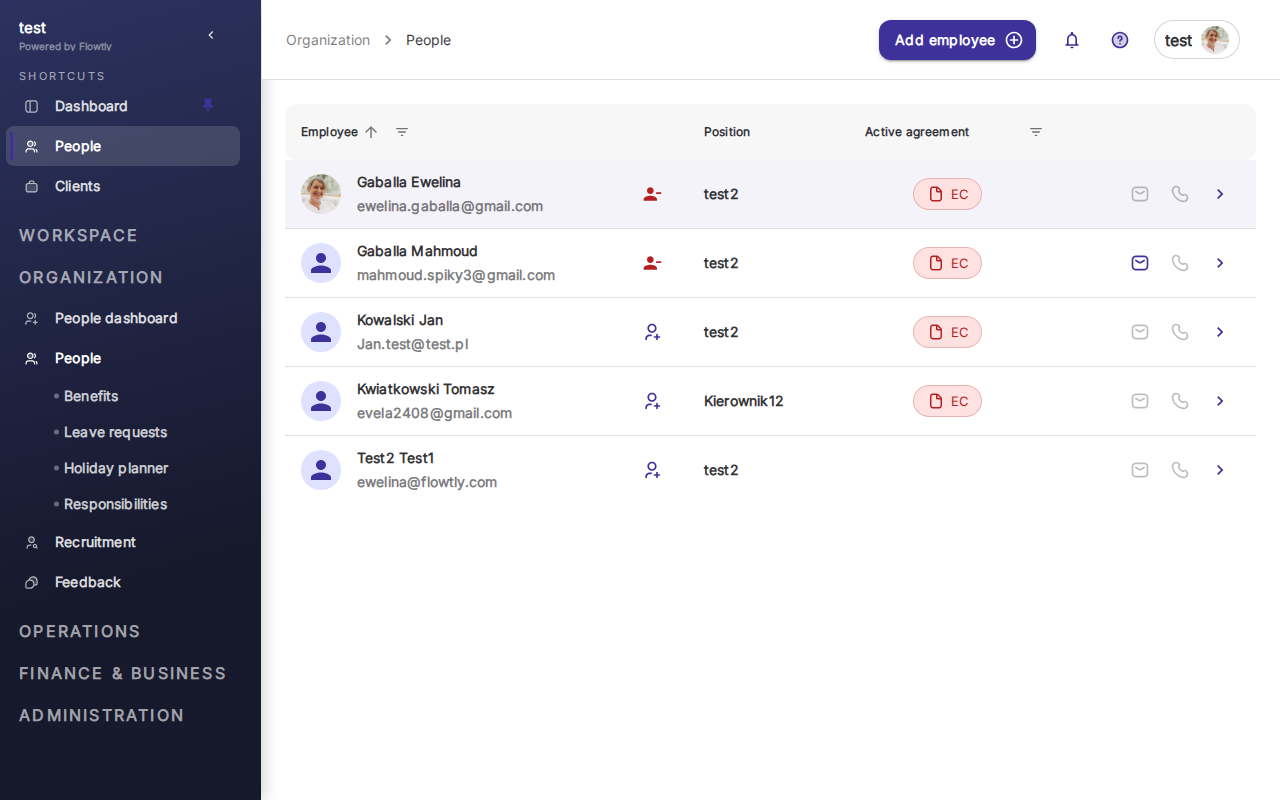
Tip: The Agreements dashboard provides an overview of all active and pending agreements. You can quickly see who has an agreement, its type, status, and effective dates, offering a quick pulse check on your team's contractual landscape.

2. Creating and Customizing Agreement Templates

Flowtly allows you to create reusable agreement templates, significantly speeding up the process of onboarding new employees or updating existing contracts. Templates ensure consistency across your organization and reduce the likelihood of errors.

  • Access the Templates Section: On the Agreements dashboard, you'll likely find a tab or button labeled "Templates" or "Agreement Types." Click on it.
  • Start a New Template: Click the "+ New Template" or "Create New Agreement Type" button.
  • Define Template Basics:
  • Template Name: Give your template a clear, descriptive name (e.g., "Full-Time Employment Contract - Standard," "Part-Time Consultant Agreement," "Confidentiality Agreement").
  • Description: Briefly explain the purpose and typical use case for this template.
  • Category/Type: If Flowtly offers categories (e.g., Employment, Contractor, NDA), select the most appropriate one.
  • Craft the Agreement Content:
  • Flowtly's rich text editor provides tools to write and format your agreement's clauses and sections. You can use headings, bullet points, bold text, and more to make your agreements clear and readable.
  • Standard Clauses: Include all necessary legal and company-specific clauses such as:
  • Introduction and Parties Involved
  • Job Title and Responsibilities
  • Start Date and Duration
  • Compensation and Benefits (salary, bonuses, vacation, health insurance)
  • Working Hours and Location
  • Confidentiality and Intellectual Property
  • Termination Conditions and Notice Periods
  • Governing Law
  • Utilize Placeholders (Variables): This is a powerful feature for creating dynamic templates. Placeholders are special tags that Flowtly automatically replaces with specific employee data when an agreement is generated.
  • Look for an "Insert Variable" or "Placeholder" button in the editor.
  • Common placeholders include: {{employee.full_name}}, {{employee.position}}, {{agreement.start_date}}, {{compensation.annual_salary}}, {{benefits.vacation_days}}, {{company.name}}, etc.
  • Carefully place these variables where employee-specific information will appear.

Example: Instead of typing "John Doe will start on January 1st, 2024," you would write: "{{employee.full_name}} will commence employment on {{agreement.start_date}}." This ensures that when you apply this template to a new employee, their name and start date are automatically pulled in.

  • Review and Save:
  • Use the "Preview" function to see how your template will look when populated with data. Check for formatting errors or missing information.
  • Once satisfied, click "Save" or "Publish Template." You can often save as a "Draft" first if it's not ready for use.

3. Assigning Agreements to Employees

With your templates ready, you can now generate and assign specific agreements to your employees. This process pulls data from the employee's profile and populates the chosen template.

  • Navigate to Employee Profiles:
  • From the main navigation, go to HR Management > Employees.
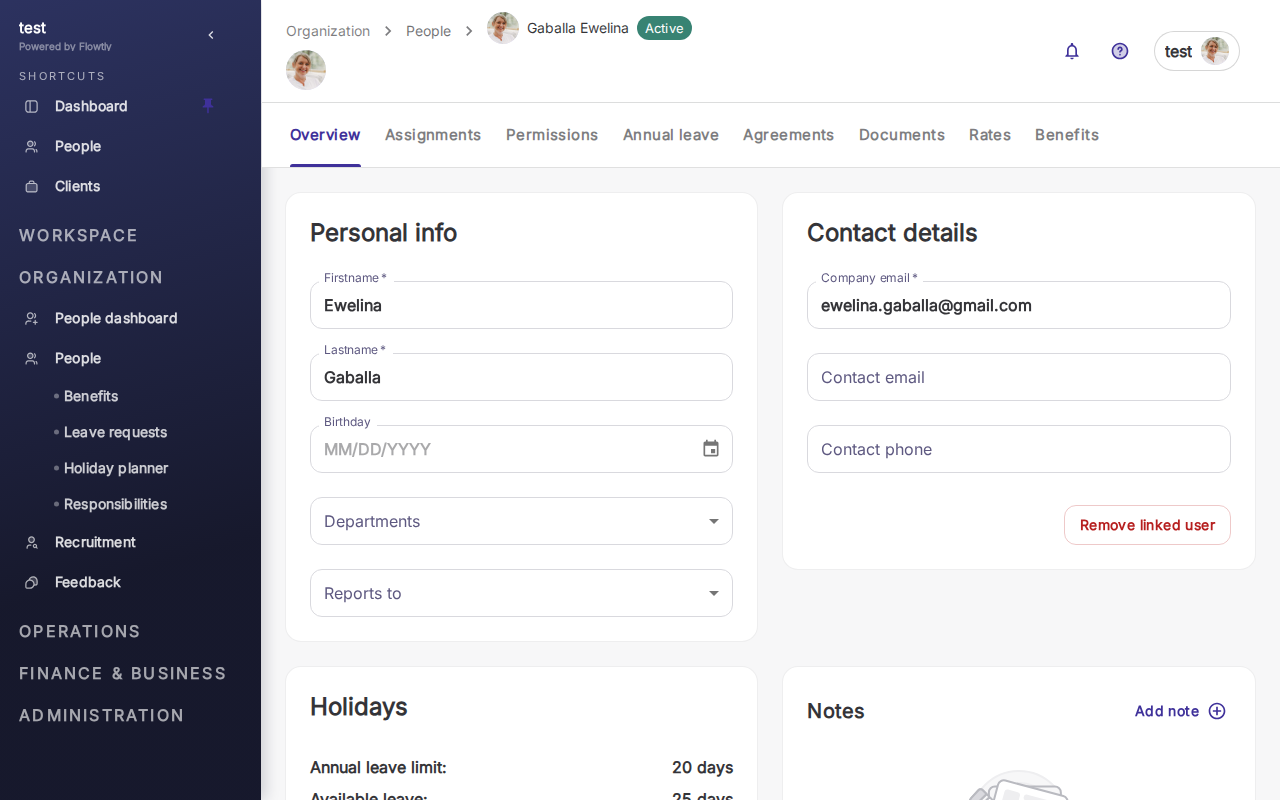
  • Select the specific employee for whom you want to create an agreement.
  • Add a New Agreement to the Employee:
  • Within the employee's profile, look for an "Agreements" tab or section.
  • Click on "Add New Agreement" or a similar button.
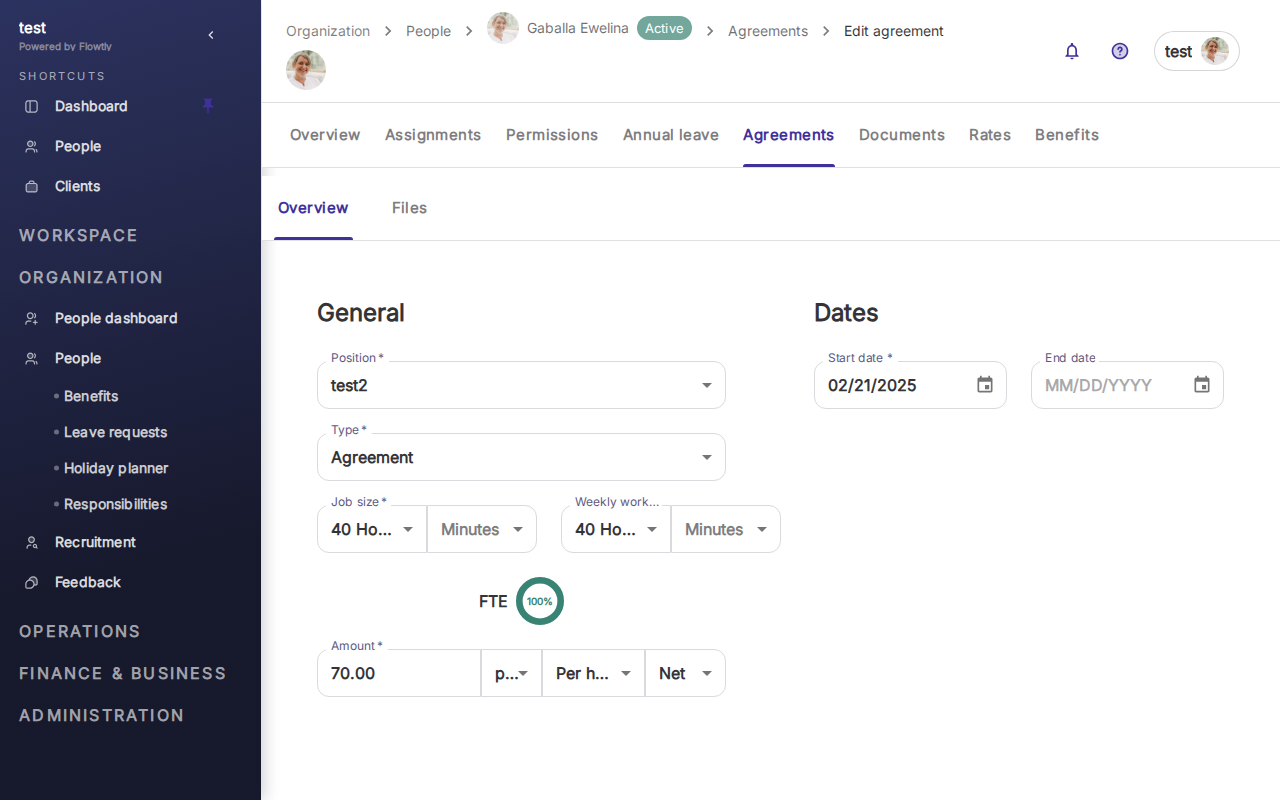
  • Configure the Agreement Details:
  • Select Template: Choose the appropriate template you created earlier from the dropdown list (e.g., "Full-Time Employment Contract - Standard").
  • Effective Date: Specify the date from which this agreement will officially be active (usually the employee's start date).
  • Expiration Date (Optional): For fixed-term contracts, set an end date.
  • Populate Custom Fields: For any placeholders that aren't automatically pulled from the employee profile (e.g., specific bonus amounts, project-based clauses), you'll be prompted to enter this information here. Flowtly will then insert these values into the agreement.
  • Review Generated Content: Flowtly will dynamically generate the agreement document based on your selected template and the employee's data. Review it carefully to ensure all information is accurate and complete. You may have an option to make minor, one-off edits directly to this specific agreement without affecting the template.
  • Attach Supporting Documents (Optional): You might need to attach an employee's CV, offer letter, or other relevant documents. Use the attachment feature to keep everything organized.
  • Save as Draft: Always save the agreement as a "Draft" initially. This allows you to make further adjustments before formalizing it.

4. Managing Agreement Statuses and Workflow

Flowtly provides robust tools to manage the lifecycle of an agreement, from its initial creation to termination. Tracking statuses ensures you know exactly where each agreement stands in the process.

  • Understanding Agreement Statuses:
  • Draft: The agreement is being prepared and is fully editable. It's not yet active or shared with the employee.
  • Pending Review (Optional): If your organization has an internal approval process, you might send the agreement for review by a manager or legal team.
  • Pending Signature: The agreement has been sent to the employee (or external party) for their review and signature.
  • Active: The agreement has been signed by all parties and is currently in effect.
  • Terminated/Expired: The agreement has officially ended, either due to termination or reaching its natural expiration date.
  • Archived: Older, inactive agreements can be archived for historical record-keeping, keeping your active list clean.
  • Updating Statuses:
  • From the employee's agreement section or the main Agreements dashboard, you can usually click on an agreement to view its details and change its status.
  • Sending for Signature: If Flowtly integrates with e-signature services or has an internal acknowledgment feature, you'll find an option to "Send for Signature." This often triggers an email notification to the employee.
  • Manual Status Updates: For agreements signed externally, you'll manually update the status to "Active" once you receive the signed document.

Note: Flowtly's Emails & Notifications system can be configured to send automated reminders or alerts when agreement statuses change, helping you stay on top of important deadlines.

5. Electronic Signatures, Document Storage, and Audit Trails

Ensuring agreements are properly signed, securely stored, and traceable is paramount for legal compliance and good HR practice.

  • Generating the Final Document:
  • Once an agreement is finalized and ready for signature, you can typically generate a PDF version directly from Flowtly. This PDF will include all the dynamically populated employee data.
  • Click "Generate PDF" or "Download Agreement" on the agreement's detail page.
  • Managing Signatures:
  • Integrated E-signature: If Flowtly offers an integrated e-signature solution, the employee will receive a link to review and electronically sign the document directly within the platform or a connected service.
  • External Signature & Upload: If not, the generated PDF can be sent to the employee for physical signing or via an external e-signature service (e.g., DocuSign, Adobe Sign). Once signed, the executed PDF should be uploaded back into the specific agreement record in Flowtly. This centralizes all documentation.
  • Secure Document Storage:
  • Flowtly acts as a secure repository for all your employee agreements. This ensures they are easily accessible when needed, but also protected with appropriate access controls.
  • All versions and associated documents (like addendums) should be stored within the agreement's record.
  • Version Control and Amendments:
  • Should an agreement need to be amended (e.g., a change in role, salary, or terms), it's best practice to create an addendum or a new version of the agreement. Flowtly often supports versioning, allowing you to track all historical changes without overwriting the original.
  • Audit Trail:
  • Every significant action taken on an agreement in Flowtly—creation, edits, status changes, signature requests, document uploads—is typically recorded in the system logs. This System Logs & Audit Trail provides a clear, unalterable record of who did what and when, which is invaluable for compliance and dispute resolution.

Summary & Next Steps

Congratulations! You've now learned how to master employee agreements in Flowtly, from creating versatile templates to managing their entire lifecycle. Leveraging Flowtly's agreement features will bring greater efficiency, consistency, and legal confidence to your HR operations. Remember to regularly review your templates to ensure they remain current with changing regulations and company policies. Explore how Flowtly's other modules, like benefits and holidays, can be seamlessly integrated with your agreement processes to create a truly holistic HR system.

Learn more

More tutorials

Whatsapp