Welcome to Flowtly! In this tutorial, you'll learn how to set up your very first budget within the Flowtly platform. We'll walk you through configuring your budget, allocating funds across various categories, and understanding the basics of tracking your expenses to ensure you stay on financial target. By the end, you'll have a foundational budget ready to help manage your company's spending effectively.
Before You Begin
Before diving into creating your budget, it's helpful to have a general idea of your desired budget period (e.g., monthly, quarterly, annually) and the main expense categories you anticipate. This initial preparation will make the setup process smoother.
Step 1: Navigating to the Budgets Module
To begin, you'll need to access the Budgets section of Flowtly.
- Log in to your Flowtly account.
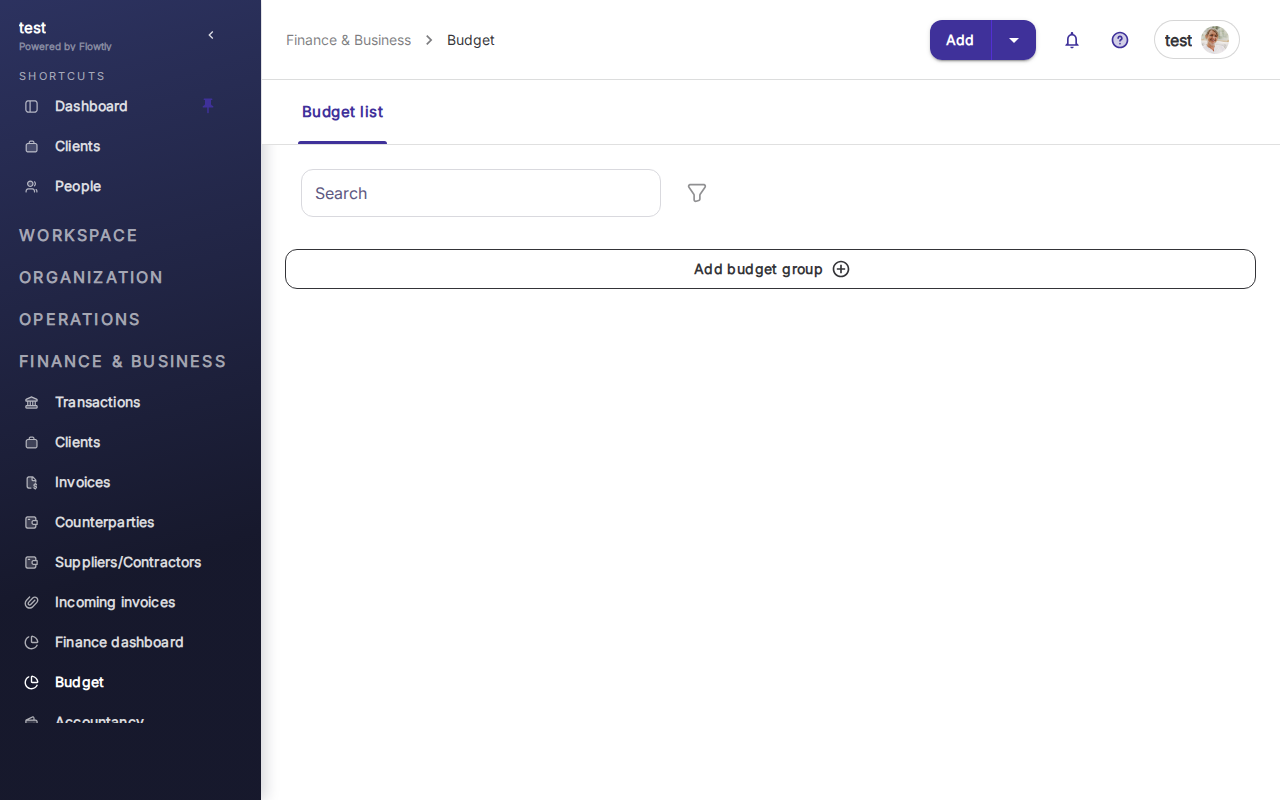
- From the main dashboard or the left-hand navigation menu, locate and click on Budgets. This will take you to the budget overview page, where you can see all existing budgets and create new ones.
Tip: If you don't immediately see "Budgets" in your navigation, you might need to check your user permissions. Contact your Flowtly administrator if you believe you should have access.
Step 2: Creating a New Budget
Now, let's create a fresh budget. This involves defining its core parameters.
- On the Budgets overview page, click the + New Budget button, usually located in the top right corner.
- A form will appear asking for the budget details:
- Budget Name: Enter a clear and descriptive name for your budget (e.g., "Q1 2024 Operating Budget," "Marketing Campaign Budget - Project X," "Annual Admin Expenses").
- Start Date & End Date: Define the period your budget will cover. Use the calendar picker to select the start and end dates. This is crucial for tracking expenses within the correct timeframe.
- Currency: Select the primary currency for this budget from the dropdown list. Ensure this matches the currency in which most of your expenses will be recorded.
- Budget Owner (Optional but Recommended): Assign an employee responsible for this budget. This helps with accountability and notifications. You can select from your list of employees.
- Description (Optional): Add any additional notes or context about the budget. This is helpful for team members who might refer to it later.
- Access/Visibility (If applicable): Depending on your Flowtly configuration, you might have options to control who can view or edit this budget. Adjust as needed.
- Once all details are filled in, click Create Budget. Your new budget will now appear in the budget overview list.
Tip: For recurring budgets (e.g., monthly operating budgets), consider a naming convention that includes the period, such as "Monthly OpEx - January 2024." This makes organization easier.
Step 3: Defining Budget Categories
After creating the budget, the next step is to break it down into meaningful categories. This allows you to allocate funds to specific areas and track spending granularly.
- From the Budgets overview, click on the name of the budget you just created. This will take you to the budget's detail page.
- On the budget detail page, look for a section related to "Categories" or "Allocations." There should be an option like + Add Category or Manage Categories.
- Click + Add Category.
- Enter the Category Name (e.g., "Software Subscriptions," "Travel," "Office Supplies," "Marketing Campaigns," "Consulting Fees," "Utilities").
- Click Save or Add. Repeat this process for all the expense categories relevant to your budget.
Tip: Use categories that align with your accounting practices or internal departmental structure. This makes it easier to reconcile Flowtly data with your financial reports. Avoid having too many overly specific categories, which can make tracking cumbersome, or too few, which might hide important spending details.
Step 4: Allocating Funds to Categories
With your categories defined, it's time to set specific financial targets for each. This is where you decide how much you plan to spend in each area.
- On the budget detail page, within the Categories/Allocations section, you will see a list of the categories you just created.
- For each category, you'll find an input field, often labeled "Allocated Amount" or similar.
- Enter the planned budget amount for each category. For example, if you've allocated €1,000 for "Software Subscriptions" for the budget period, enter "1000" in that field.
- As you enter amounts, Flowtly will typically calculate the total allocated amount and often display the remaining unallocated balance.
- After entering all amounts, ensure you Save your changes. There might be a dedicated "Save" button for the allocations section or a general "Save Changes" button for the entire budget.
Note: Be realistic with your allocations. Overly ambitious budgets can lead to constant overspending, while too conservative ones might hinder necessary operations. It's often helpful to review past spending data (if available) to inform your current allocations.
Step 5: Linking to Projects or Employees (Optional for Enhanced Tracking)
For even more granular control and reporting, Flowtly allows you to link specific budgets or budget categories to projects or individual employees. This is particularly useful for project-based budgeting or tracking personal expense allowances.
- On the budget detail page, you might find options to Link Projects or Link Employees.
- If you choose to link projects:
- Click Link Projects.
- Select the relevant projects from the list provided.
- This means that expenses submitted under these linked projects can then be tracked against this specific budget.
- If you choose to link employees:
- Click Link Employees.
- Select the employees whose expenses you wish to track against this budget.
- This is often used for personal development budgets, travel allowances, or department-specific spending.
Tip: Linking projects and employees helps streamline expense submission and approval workflows, as the system can automatically suggest the relevant budget based on the linked entity.
Step 6: Tracking Your First Expenses Against the Budget
Once your budget is set up, the real work begins: tracking expenses. Flowtly integrates expense tracking directly with your budgets.
- When an expense occurs (e.g., an invoice arrives, an employee submits a travel expense), you or your team will need to record it in Flowtly. This is typically done through the Invoices or Expenses module.
- Navigate to the appropriate module (e.g., Invoices from the main menu).
- Click + New Invoice or + New Expense.
- Fill in the expense details (vendor, amount, date, description).
- Crucially, look for fields like Budget and Category.
- Select the budget you just created from the Budget dropdown list.
- Select the appropriate Category (e.g., "Software Subscriptions" for a SaaS invoice) from the dropdown list.
- Attach any necessary receipts or documents.
- Submit or save the expense.
Important: For an expense to be tracked against your budget, it must be linked to the correct budget and category during its submission. Educate your team on this process to ensure accurate tracking.
Step 7: Monitoring Your Budget Progress
With expenses flowing in, Flowtly provides easy ways to monitor your budget's health.
- Navigate back to the Budgets module.
- On the main budget overview, you'll typically see a summary for each budget, including:
- Allocated Amount: The total amount you budgeted.
- Spent Amount: The total expenses recorded against this budget so far.
- Remaining Balance: The difference between allocated and spent.
- Progress Bar/Visual Indicator: Many systems offer a visual representation of how much of the budget has been consumed.
- Click on your specific budget to view its detail page. Here, you'll often find a breakdown by category, showing how much was allocated versus how much has been spent for each category. You might also see a list of individual expenses contributing to that budget.
Tip: Regularly review your budget progress, especially as the end date approaches. This allows you to identify potential overspends early and take corrective action, or reallocate funds if certain categories are underspent.
Summary & Next Steps
Congratulations! You've successfully set up your first budget in Flowtly, defined categories, allocated funds, and understand the basics of tracking expenses. This is a fundamental step towards better financial control and decision-making within your organization.
Your next steps should involve:
- Communicating the new budget and its categories to relevant team members.
- Ensuring all new expenses are correctly linked to a budget and category.
- Regularly reviewing your budget reports to monitor spending and identify trends.
- Considering setting up notifications for budget thresholds (e.g., when a category reaches 80% spending).
Learn more
For more in-depth information on related topics, please refer to our knowledge base articles: