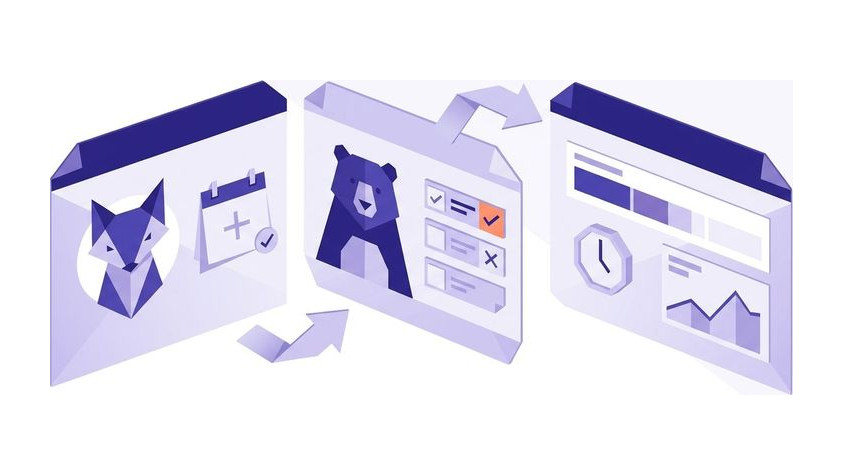
In any organization, efficient management of employee leave is crucial for maintaining productivity and employee satisfaction. Flowtly offers a robust set of tools to streamline this process, from defining different types of leave to managing individual allowances and approving requests. This tutorial will guide you through setting up holiday types, managing annual leave limits, and processing employee holiday requests from submission to approval within Flowtly.
1. Setting Up Holiday Types
Holiday types form the foundation of your leave management system. They define the different categories of leave employees can request (e.g., Annual Leave, Sick Leave, Compassionate Leave).
1.1 Navigate to Holiday Types Settings
- From your Flowtly dashboard, navigate to the Administration section in the left-hand menu.
- Under Administration, select Holiday Types. This page displays a list of all existing holiday types configured in your system.
1.2 Adding a New Holiday Type
- Click the + Add New Holiday Type button (or similar, typically found at the top right or bottom of the list).
- You will be presented with a form to define the new holiday type:
- Name: Enter a clear and descriptive name for the holiday type (e.g., "Annual Leave," "Sick Leave," "Unpaid Leave").
- Description: (Optional) Provide a brief explanation of this holiday type.
- Is Paid: Toggle this option On if employees are paid during this type of leave. Toggle Off for unpaid leave.
- Deducts from Allowance: This is a critical setting for managing annual leave limits.
- Toggle On for holiday types that should reduce an employee's allocated leave balance (e.g., Annual Leave).
- Toggle Off for types that do not consume an allowance (e.g., Sick Leave, Public Holidays, which might be tracked but not deducted from a personal balance).
- Requires Approval: Toggle On if requests for this holiday type need to be approved by a manager or HR. Toggle Off for types that might not require formal approval (e.g., a simple notification).
- Applicable to: You might have options here to specify which employees this holiday type applies to (e.g., "All Employees," "Specific Departments," "Specific Employee Groups"). Choose the appropriate scope.
- Maximum Days: (Optional, often for types like sick leave) Set a maximum number of days an employee can take for this type of leave within a given period, if applicable.
- Minimum Notice Period: (Optional) Define how many days in advance an employee must submit a request for this holiday type.
- Once all details are entered, click Save to create the new holiday type.
Tip: Start by creating your core holiday types first, such as "Annual Leave" and "Sick Leave." Pay close attention to the "Deducts from Allowance" setting for "Annual Leave" as this directly impacts how employee balances are managed.
1.3 Editing or Deleting Holiday Types
- To modify an existing holiday type, locate it in the list and click the Edit icon (usually a pencil icon) next to its name. Make your changes and Save.
- To remove a holiday type, click the Delete icon (usually a trash can icon). Confirm your decision when prompted.
Caution: Deleting a holiday type will also affect any historical records associated with it. Consider deactivating or making it inapplicable to new requests if you want to retain historical data.
2. Managing Annual Leave Limits
Once your holiday types are set up, especially those that deduct from an allowance (like Annual Leave), you need to assign these allowances to your employees.
2.1 Understanding Annual Leave Allowances
Flowtly allows you to set an annual leave entitlement for each employee. When an employee requests leave using a holiday type configured to "Deduct from Allowance," their remaining balance will be automatically updated upon approval.
2.2 Assigning and Adjusting Allowances for Individuals
- Navigate to the People section in the left-hand menu.
- Select the employee whose leave allowance you wish to manage by clicking on their name.
- On the employee's profile page, navigate to the Holidays tab.
- Here, you will see a summary of their holiday entitlements and history. Look for an option to Add/Edit Allowance or similar.
- Enter the total Annual Leave Allowance (in days or hours, depending on your system's configuration) for the current leave year.
- You might also have options to:
- Carry Over: Specify if any unused leave from the previous year can be carried over.
- Accrual Settings: If your company uses an accrual system (e.g., employees earn X days per month), you might configure this here or within broader
Work SchedulesorBenefitssettings. For simplicity, we'll focus on setting a fixed annual limit.
- Click Save to apply the allowance to the employee.
Tip: Regularly review employee leave balances, especially at the start of a new leave year, when new employees join, or when employment contracts change, to ensure allowances are accurate.
2.3 Bulk Management of Allowances (If Available)
For larger organizations, Flowtly may offer features to manage allowances in bulk, for example:
- Import: Importing allowances for multiple employees via a spreadsheet.
- Default Settings: Setting default annual leave allowances based on employee groups, departments, or
Work Schedules.
Check your Administration or Settings sections for such capabilities, as they can significantly reduce manual effort.
3. Processing Employee Holiday Requests
With holiday types and allowances configured, employees can now submit requests, and managers can review and approve them.
3.1 Employee Submission of a Holiday Request
- Employees can typically submit a holiday request from their Home dashboard or by navigating to the Holidays section in their personal menu.
- They will look for a button like + Request Holiday or Submit Leave Request.
- The employee fills out the request form:
- Holiday Type: Select from the available holiday types (e.g., "Annual Leave").
- Start Date and End Date: Specify the desired leave period.
- Number of Days/Hours: Flowtly will usually calculate this automatically based on the dates and the employee's
Work Schedule. - Notes/Comments: (Optional) Add any relevant details for the approver.
- Attachments: (Optional) Upload supporting documents, such as a doctor's note for sick leave.
- Before submitting, the system often shows the employee their current leave balance and how the requested leave will affect it.
- The employee clicks Submit Request.
Tip: Encourage employees to check their team's calendar (if available) before submitting requests to minimize conflicts and ensure adequate coverage.
3.2 Manager/Approver Review and Action
When an employee submits a request, it enters an approval workflow. Managers or designated approvers will receive a notification.
- Accessing Requests: Approvers can typically find pending requests in a few places:
- Action Center: A centralized hub for all pending actions, including leave requests.
- People Dashboard: Managers might see a summary of team requests here.
- Holidays Section: A dedicated tab showing all pending, approved, and denied requests.
- Email Notifications: An email notification will often contain a direct link to the request.
- Reviewing Request Details:
- Click on the pending request to view its full details.
- Review the Holiday Type, Dates, Duration, and any Notes from the employee.
- Crucially, check the employee's Remaining Leave Balance to ensure they have sufficient allowance.
- Flowtly may also display a Team Calendar or conflict warnings to show if other team members are already on leave during the requested period.
- Taking Action: Based on the review, the approver can:
- Approve: Grant the leave request. The employee's leave balance will be updated, and they will be notified.
- Deny: Reject the leave request. It's good practice to provide a clear reason for denial in the comments section. The employee will be notified.
- Request More Information: If clarification is needed, this option allows you to send the request back to the employee with specific questions.
Tip: When denying a request, always provide constructive feedback and, if possible, suggest alternative dates to maintain positive employee relations.
3.3 Notifications and Tracking
- Email & In-App Notifications: Flowtly will automatically send notifications to employees upon submission, approval, denial, or when more information is requested. Approvers also receive notifications for new requests.
- Holiday Calendar: All approved holidays will typically appear on a shared holiday calendar, providing a clear overview of who is out of office. This is often found in the
Holidayssection or withinPeople Dashboard. - Reporting: You can typically generate reports on leave taken, remaining balances, and trends from the
HolidaysorReportingsections, which is useful for HR and management planning.
Summary
By effectively configuring holiday types, managing individual leave allowances, and utilizing Flowtly's approval workflows, you can create a smooth and transparent system for managing employee leave. This not only ensures compliance but also enhances employee satisfaction by providing clear expectations and an easy-to-use platform for managing their time off. Regularly review and update your holiday types and allowances to keep your system aligned with company policies and employee needs.
