Supplier invoices approved, split and paid on time
Supplier invoices reach the right approver, are split across projects by floor area or another attribute and are paid in one bank file, while Cash Out shows everything due from about two weeks back to three months ahead.
24 no cost group · 14 unmatched · 9 awaiting approval — every drop marked on the funnel above
ControlBooked · 84%
84%Controlled
Still open
47 items
Uncategorised, unmatched or awaiting approval
Received296 items
Categorised272 · 92%
Approved & booked249 · 84%
Target · by Aug 3196%
The animated diagram above is illustrative: it shows how the records connect, with sample figures, not a customer’s data or a live screen.
How it works
1
Collect supplier invoices
Upload supplier invoices and Flowtly reads the key fields.
2
Approve and split
Route each invoice for approval and split it across projects or budgets.
3
Pay and match
Create the payment file and match bank transactions to invoices.
How it works in Flowtly
Screenshots of the running product, taken in demonstration organisations with sample data. Select a screenshot to open it full size. Some of these screens show the Polish interface.
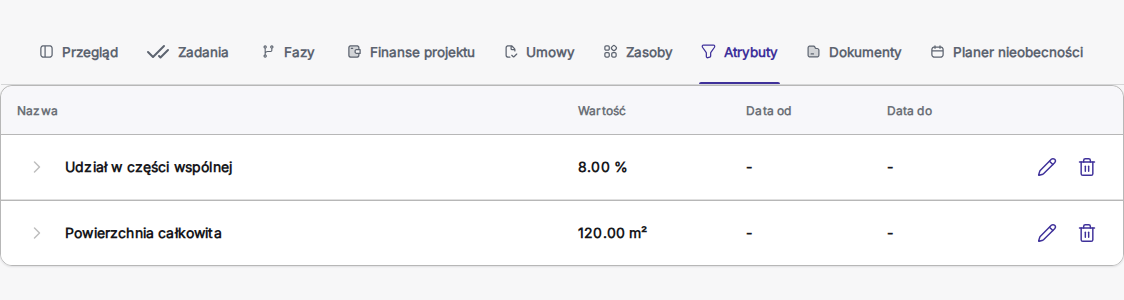
1Record attributes on a project, such as floor area and the share of common parts, to split shared costs by them.
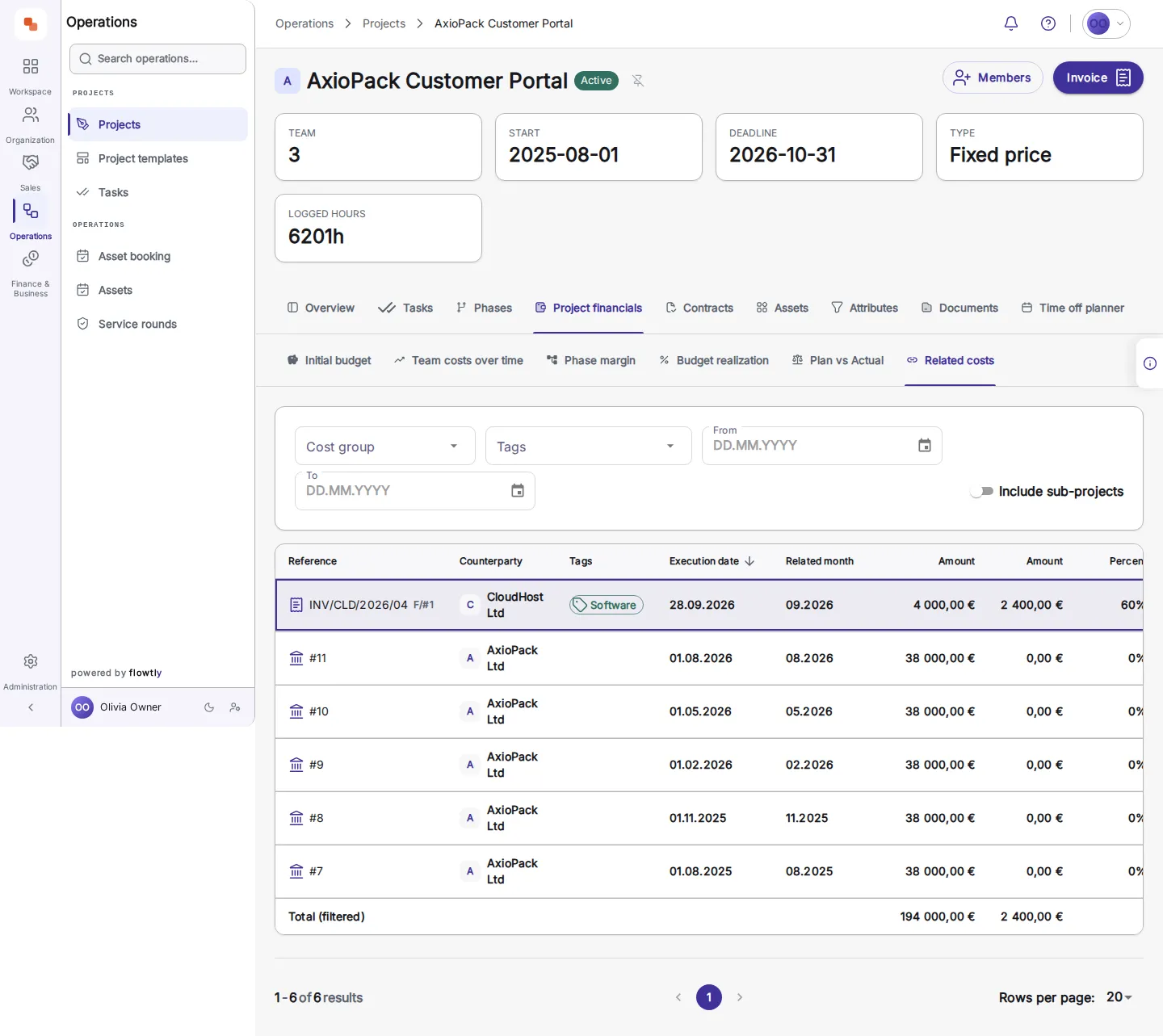
2See shared costs on the project: each allocated supplier invoice with its amount and the share assigned to this project.
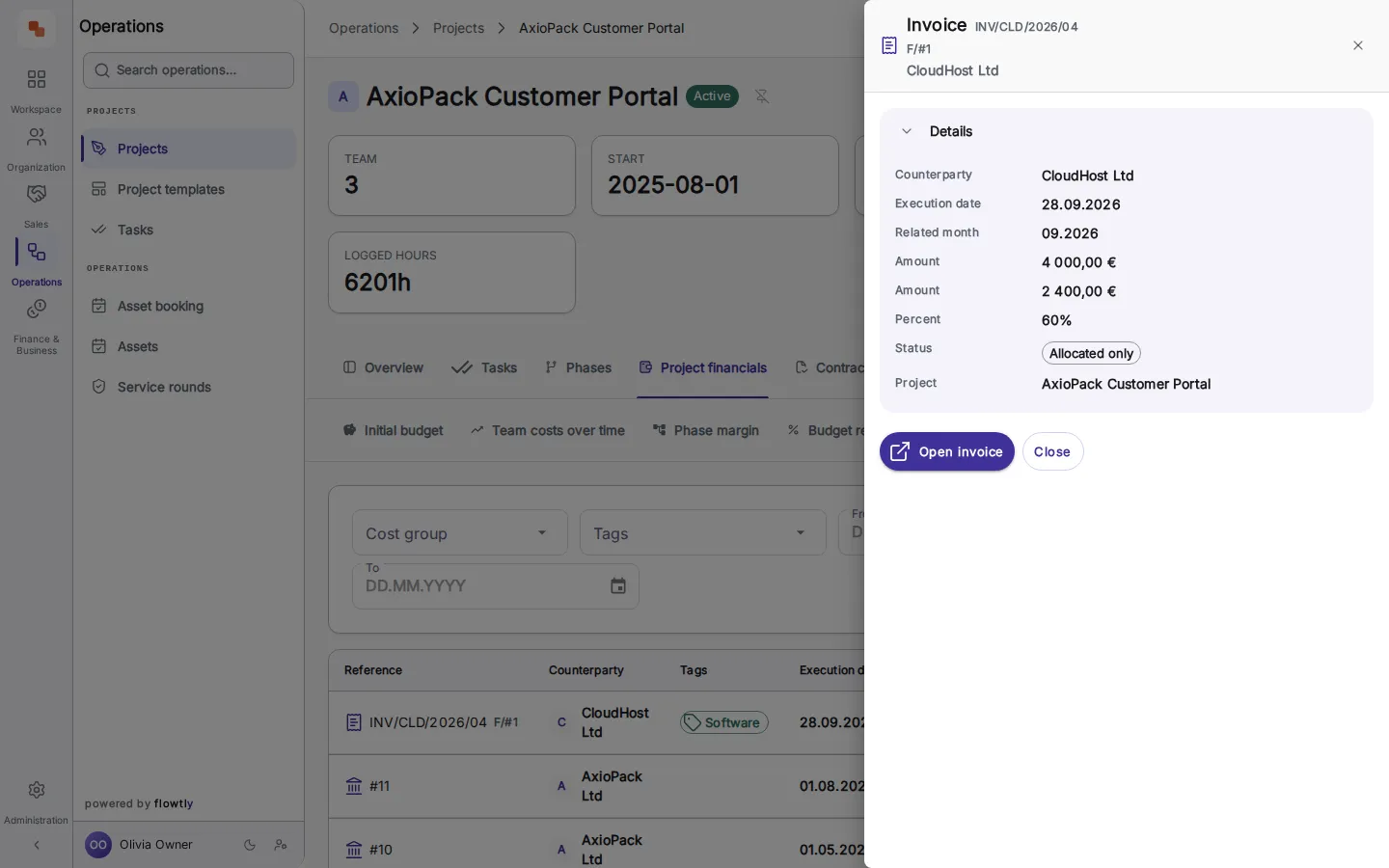
3Click a cost to open its record: the invoice, the supplier, the amount, the share and the project it was allocated to.
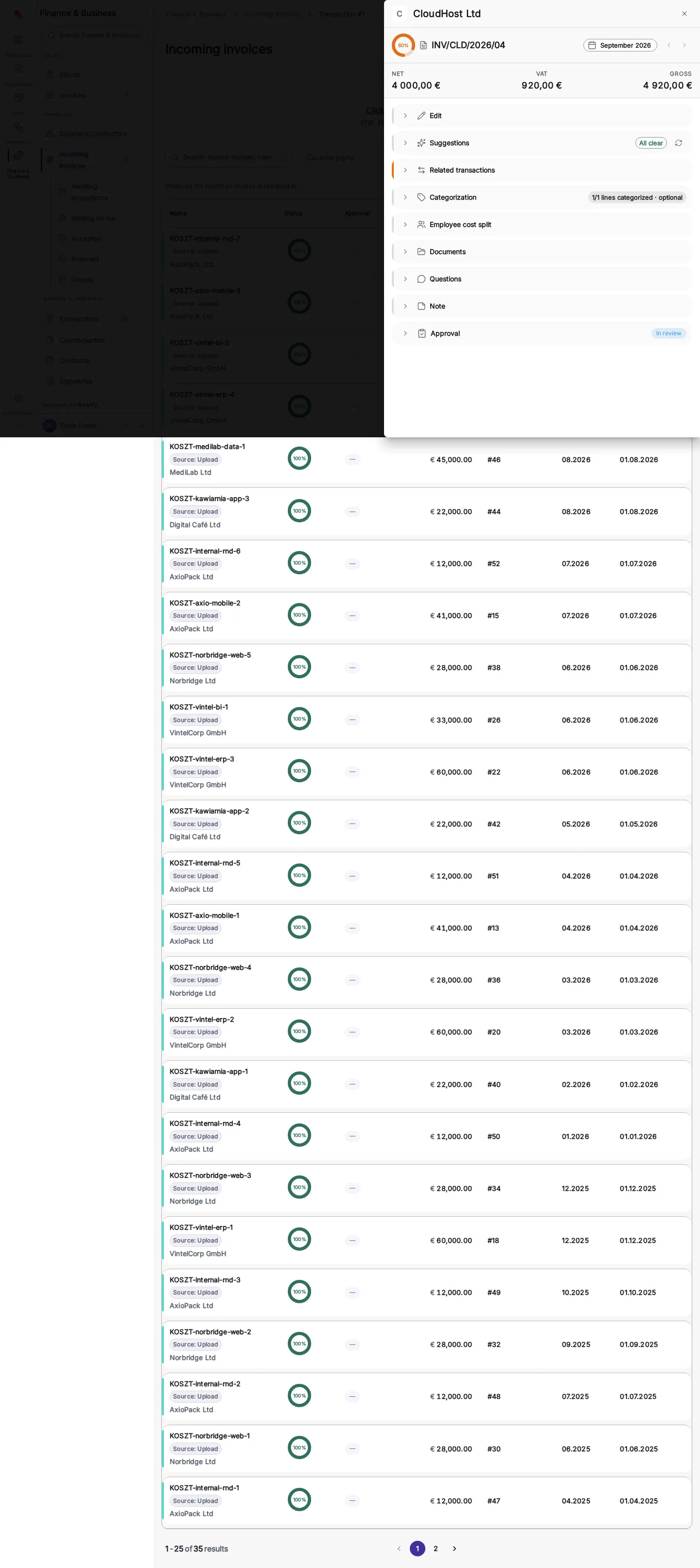
4Follow it to the source: the incoming invoice with its net, VAT and gross amounts and its approval state.
Cash Out: everything due to be paid
Upcoming and overdue payments in one view, from about two weeks back to three months ahead: supplier invoices already on the books and expected obligations that are not invoiced yet, shown muted. Read it as a chart by week or month, a per-day calendar or a list sorted by date, amount or counterparty. Overdue amounts are shown in red, and a week with nothing due still appears, so gaps stay visible.
Split a shared invoice by attribute
A security or cleaning invoice that covers many projects no longer has to be divided by hand. Record a number once on assets and projects, such as floor area in m², and one click fills the split in proportion. The amounts always add up to the invoice total, a project you strike stays recorded as excluded, and a split that falls short with no exclusion marked is flagged on the document.
Supplier invoices approved by the right person
With the approval workflow on, an incoming invoice goes to the owner of its cost-category tag, or to the owner of the linked cost, and otherwise to everyone who holds an invoices permission. Each approver has a Waiting on me tab with only their own decisions, a rejection carries a note, and every invoice keeps a decision history of who approved or rejected it.
One bank file for the whole payment run
The Unpaid tab lists every supplier invoice still to pay, approved or not. Tick the ones to pay and export one file for your bank’s bulk-payment import instead of keying each transfer by hand: ISO 20022 pain.001 XML for SEPA, domestic and Polish split payments, or Multicash PLI for ING in Poland. Banks differ in what they import, so check that yours takes one of these. For example, an invoice tagged Legal is approved by the tag’s owner on Tuesday and paid with the rest of the week’s approved invoices in Friday’s file. Invoices whose supplier has no bank details are skipped and flagged.
Supplier contracts from the signed PDF
Drop a batch of signed supplier contracts and stay on the list while they upload. Each one waits in Awaiting sorting until you open its review: parties, dates, payment terms and prices are pre-filled and marked as extracted, the likely supplier is suggested by tax ID or name, and nothing is saved until you confirm. A file Flowtly already holds is recognised instead of becoming a second contract.
Finance & profitability
Track all costs per employee, client or project
Forecast expected expenses and recurring spend
Cost control with approvalsCategorise every cost, link it to a project or budget, and route spend through approval workflows so nothing slips past unauthorised.Read the guide
Bank sync and reconciliationConnect your bank to import transactions automatically, or upload MT940 statements, then match payments to invoices.Read the guide
Cash Out: every payment coming dueUpcoming and overdue payments in one forward-looking view, about two weeks back to three months ahead: supplier invoices already on the books plus expected obligations not yet invoiced, shown muted. Switch between a chart by week or month, a per-day calendar and a list sorted by date, amount or counterparty.Read the guide
Split one supplier invoice across projects by attributeRecord a number once, such as a building’s share of a site or a tenant’s floor area, and fill an invoice’s split in one click, flat or as a building-then-tenant cascade. The shares always add up to the invoice total, a tenant you strike stays recorded as excluded, and each project’s related costs show the full invoice next to its own share.Read the guide
Supplier invoice approval, routed to the right personTurn on the approval workflow and each incoming invoice goes to the owner of its cost-category tag, then to the owner of the linked cost, and otherwise to everyone with an invoices permission. Approvers work from their own Waiting on me tab, a rejection carries a note, and every invoice keeps its decision history.Read the guide
Pay a batch of supplier invoices with one bank fileThe Unpaid tab is your payment queue, with or without approval. Tick the invoices to pay and export one file for your bank’s bulk-payment import instead of keying each transfer: ISO 20022 pain.001 XML for SEPA, domestic and Polish split payments, or Multicash PLI for ING in Poland. Invoices whose supplier has no bank details are left out and flagged.Read the guide
Using Stripe? Connect it as a bank source
How does each supplier invoice reach the right approver?
Problem
Supplier invoices land in a shared inbox and get forwarded around until someone says yes. Nobody can tell what is waiting on whom, so invoices are paid late, or paid without anyone deciding.
Solution
With the approval workflow on, Flowtly sends each incoming invoice to the owner of its cost-category tag, then to the owner of the linked cost, and otherwise to everyone with an invoices permission. Each approver’s Waiting on me tab holds only their own decisions, and a rejection carries a note.
Approval routing (example)
Illustrative example
Invoice taggedLegal
Goes toOwner of the Legal tag
Waiting on me3 invoices
Approved invoices wait in Unpaid, ready to pay
How do I pay the week’s invoices in one go?
Problem
Every approved invoice turns into a transfer someone keys into the bank portal by hand: account number, amount, reference, again and again, with a chance of a typo each time.
Solution
The Unpaid tab lists every supplier invoice still to pay. Tick the ones due, export one payment file, pain.001 XML or Multicash PLI for ING in Poland, and upload it to your bank’s bulk-payment import. Invoices whose supplier has no bank details are skipped and flagged.
Do we have to match every bank transaction to an invoice by hand?
No. Import your bank statement (MT940) and Flowtly automatically matches payments to contractors and client invoices by amount, reference, and contractor details. Anything it can’t match is queued for a quick manual assignment.
Can we require approval before an expense gets booked?
Yes. Turn on the invoice approval workflow and grant the approver role to specific team members. An incoming invoice is then submitted for review and approved, rejected, or withdrawn, with a full decision history kept for every one.
Do we need to keep receipts and invoices for every transaction?
Each transaction shows whether its required supporting documents are attached. Upload an invoice, receipt, or contract straight to the transaction, or attach a file that was already uploaded but not yet linked.
Can a company expense be tied to a specific budget?
Yes. With the Budget module active, you can assign a transaction to a budget directly from its detail view, so spend is tracked against the right project or department as it happens.
How do we resolve a question our accountant has about a transaction?
Every transaction and incoming cost document has its own discussion thread. Your accountant asks from their Accountancy view, you’re notified, and you reply in the same thread until it’s marked resolved.
What do our customers say about Flowtly?
Thanks to Flowtly, we were able to automate key business processes, significantly increasing our efficiency and saving time. We especially appreciate the budget and cost management module, which helps us better control expenses and optimise costs.
Result: The team better controls expenses and optimises costs across projects.