Property Booking Process
As an employee, to book a room, you need to navigate to the Property booking item in the main menu on the left-hand side. You will see 2 tabs: First of them is Reservations, where you will see a list of resources assigned to yourself. Second of them is called Book, where all resources are displayed. As an employee, you can book any of them as long as they are not reserved for the same time. You can check this by using the "Available from" field located in the upper-right corner of the Book tab. It lets you define the starting date and time from which available resources will be displayed in the list below. A resource configured for daily bookings will be occupied for the entire day, whereas a resource configured for minutes will be shown as available outside its booked hours.
Booking
Expand the group and select the resource you are interested in. Click the "Book" button.
Daily Type
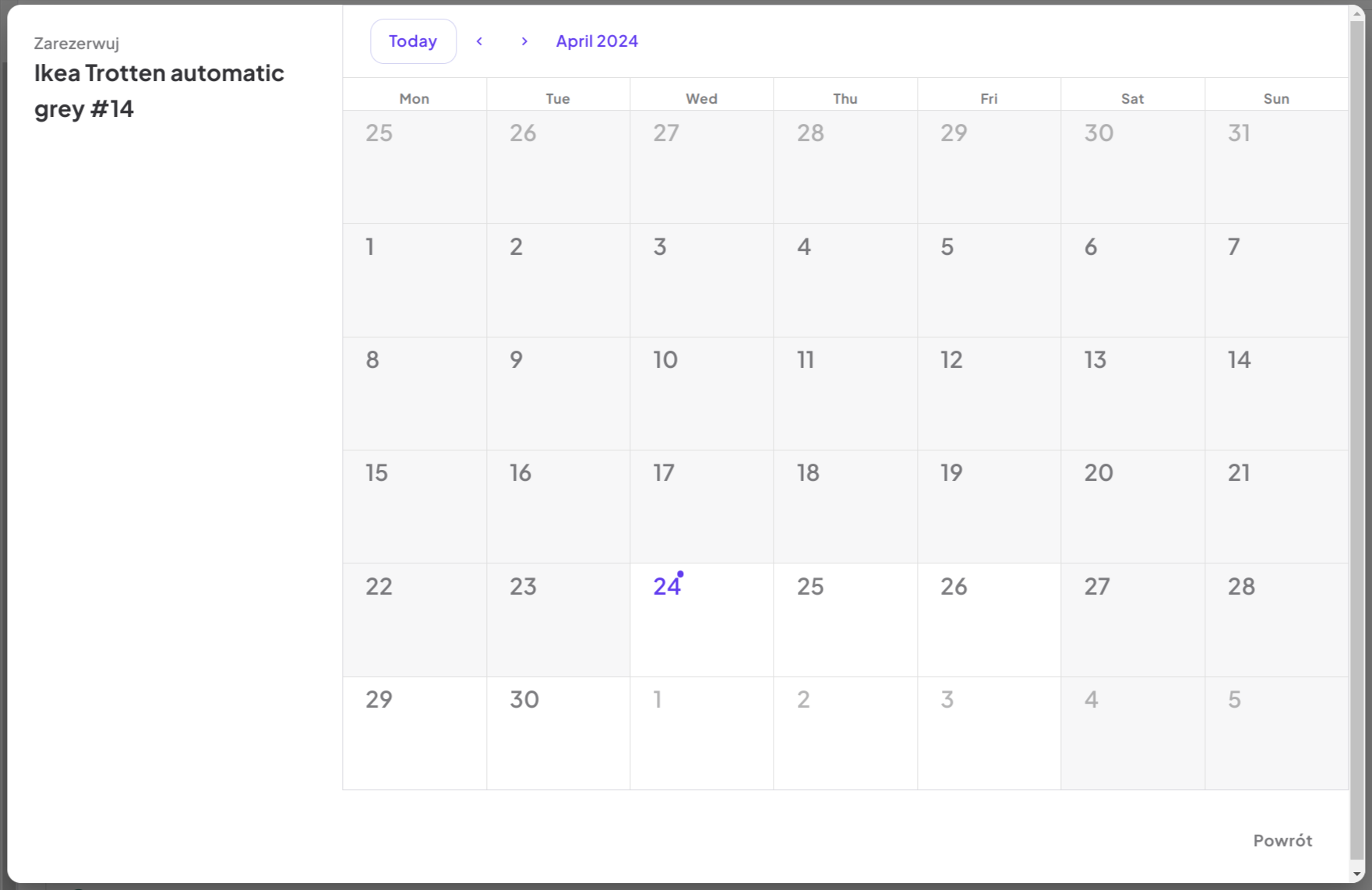
A window with a calendar view showing the full month will open, indicating past and current days. To book a resource, select an available period on the calendar and use drag and drop to mark the days you are interested in. For example, to select the days from the 5th to the 9th, click on the 5th day of the month and drag to the 9th while holding down the mouse button. After this operation, confirm the booking by clicking the save icon or cancel it by clicking the cross. Additionally, below the calendar, you’ll find the Reservation from/to fields. These fields are prefilled based on the period you selected on the calendar. You can use them to manually adjust the reservation—for example, to extend it into the next month. This kind of adjustment isn't possible via drag-and-drop, but it can be done through manual input in these fields.
Minutes Type
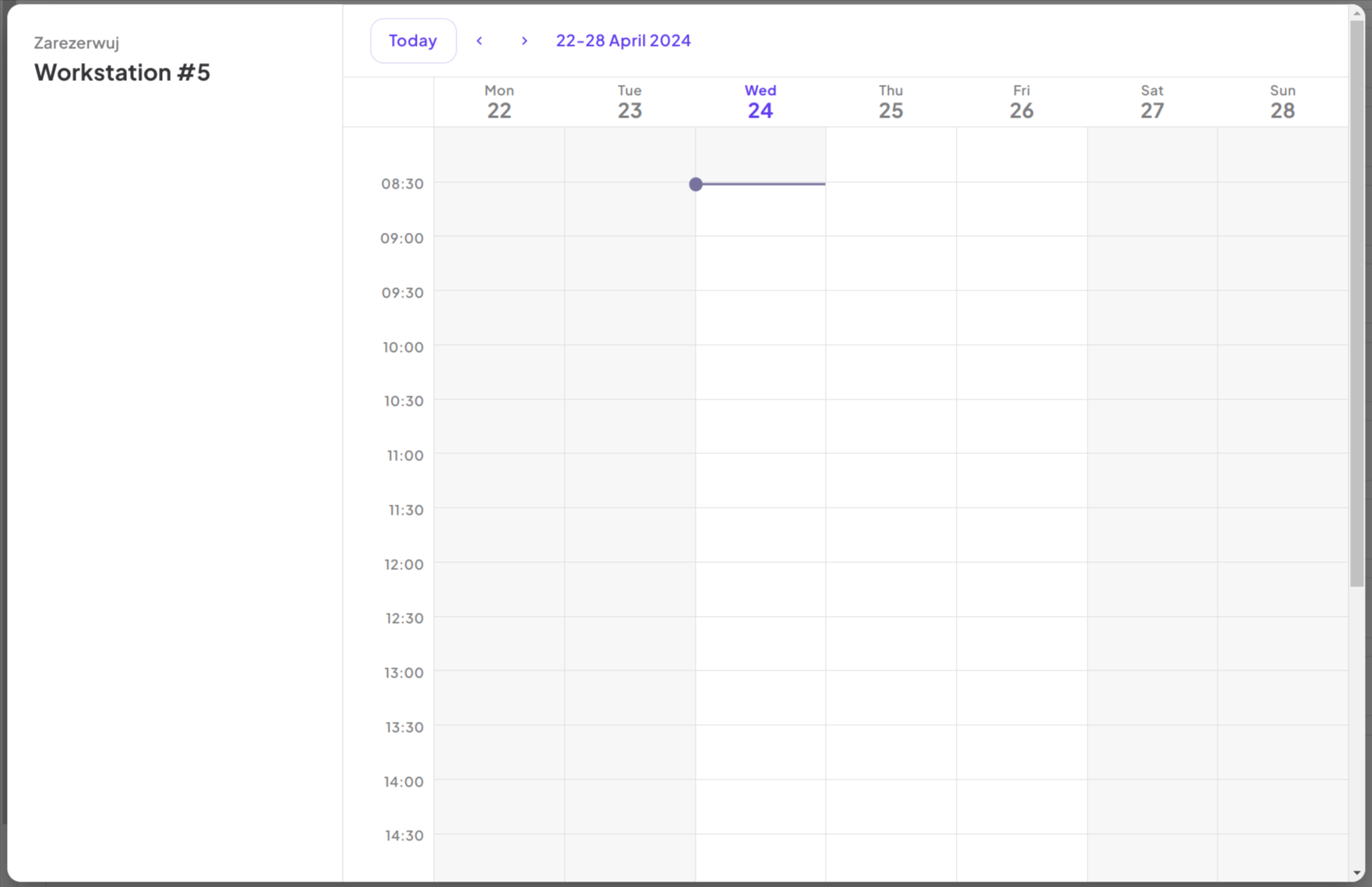
A window with a calendar view showing the current week's days will open. To book a resource, such as a room from 10:00 to 10:45, find an available slot and use drag and drop to select the desired time period by clicking and dragging. After this operation, confirm by clicking the save icon, or discard the booking by clicking the cross. If you need more precise control over the reservation time than what’s possible with drag-and-drop, click the clock icon on the booking. This will open a time selection modal, where you can manually enter the start and end time of your reservation.
Permanent Type
Some resources—such as desks—can be assigned permanently to specific users. These are not time-limited reservations like hourly or daily bookings. Instead, the resource remains assigned indefinitely starting from a defined start date. How to make a Permanent Booking:
- Find a resource marked as available permanently (you'll see a green dot and a "Book" button).
- Click the Book button.
- In the modal window that appears, enter a Permanent rental start date using the calendar picker.
- Click Book to finalise.
Once booked, the resource will show as "Permanently" reserved and cannot be selected by other users. A permanent booking needs no end date: it stays in the "Reservations" tab and keeps naming its holder for as long as the assignment stands. It ends when it is cancelled, when the resource is reassigned, or when it is given an end date.
A resource has one holder at a time, and a booking that overlaps an existing one is refused with the message "This time period is reserved". A resource whose Concurrent holders value is above 1 accepts that many overlapping bookings before it refuses one, see Create New or Edit Property. Only a person can release a resource - by cancelling the reservation or handing it to someone else - so a booking never lapses on its own.
A resource with the Minutes booking type needs a slot size, set as its multiplicity. If it has none, the booking is refused with a message saying the resource has no slot size set. Ask an administrator or resource manager to set the multiplicity on the resource, as described in Create New or Edit Property.
Who a booking can be for. Anyone can book a bookable resource for themselves. Booking for a colleague, or moving a colleague's booking onto someone else, needs the ROLE_PROPERTY_BOOKINGS_MANAGER permission. A booking held by a project can be made, changed or cancelled by a projects manager, an administrator or a bookings manager. Changing a booking's holder needs the right to manage both the previous holder and the new one.
Upon confirming the booking, a reservation will be created, and an email notification will be sent to the employee for informational purposes. The reservation will be visible in the "Reservations" tab and in the widget on the dashboard.
Booking a Free Spot for Today from the Dashboard
The booking widget on the dashboard lists your own bookings and, under them, Free today: resources booked by the day that nobody holds for any part of today. Each row has a Book button. One click books that resource for you for the whole of today, the booking appears among your own at once, and a message names the resource. You can cancel it from Property booking like any other reservation.
The list shows up to five resources; when more are free, See all free spots opens Property booking. Resources booked by the minute and permanent resources are not offered here, because they need hours or a handover: book those from Property booking. When none of your organisation's resources is booked by the day, the section is not shown. When all of them are taken, it says so and points you to Property booking to book another day.
Choosing the Resource in the New Booking Drawer
In the New booking drawer, the Resource field is a searchable list that puts the resources you can book first.
- Searching. Type part of a resource's code. The search ignores capitals, dashes and spaces and matches anywhere in the code, so pn61 finds PN-61, and 61 finds PN-61, PN-161 and PN-261. The matched part is underlined. Where your organisation shows serial numbers, they can be searched too.
- Free and Taken. A line above the list names the period it was checked for, Free for the start → the end, or open-ended when no end date is set. Resources are listed in two groups, each with its count: Free, in code order, then Taken. A taken resource is greyed out with a lock, says until when it is taken and by whom (with +N when several bookings overlap), and cannot be selected. A resource that holds more than one booking at a time counts as taken only once all its places are booked for that period. A resource whose last booking ended shortly before your start date is free, and carries the note released with that date.
- Changing the dates re-checks the list, so a resource can move between the two groups as you adjust the start and end.
- Keyboard. Use the up and down arrows to move, Enter to select and Esc to close. The first free match is highlighted as you type, so Enter picks it straight away.
- When nothing fits, the list says so: that the resource you searched for is taken, with until when and by whom; that no resource matches your search; or that every resource of this type is taken in the chosen period. Each offers Change the period, which takes you back to the start date.
Changing a Saved Reservation
An existing reservation can be edited after it has been saved - to correct its billing details, to move its start or end, or to move it to another resource. Open the reservation from the "Reservations" tab, adjust the fields and save. The overlap check ignores the reservation you are editing, so keeping or shortening its own period is accepted; only an overlap with a different booking of the same resource is refused, with the message "This time period is reserved". On a resource shared by several holders, an overlapping booking is refused only once the Concurrent holders value is reached.
When you change only the start of a reservation that has an end date, the end date stays as it was. To remove the end date, clear the end field yourself.
Moving a reservation to another resource
The Resource field in the edit window starts on the reservation's current resource. To move the reservation, pick another one and save. The list offers resources of the same type, booked the same way (by day, by minutes or permanently), that are open to booking. The reservation keeps its holder, and keeps its period unless you change the dates in the same edit.
Availability is checked on the new resource for the whole period. If the new resource is already booked for that time, or is closed to booking, the move is refused and the edit window says why, so you can pick another resource or change the period.
Cancelling a Reservation
Cancelling is possible at any time, provided that the booking period has not ended. In such a case, the reservation remains in the system for statistical purposes. To cancel your reservation, in the main view in the "Reservations" tab, select the reservation, click the x-button, provide a reason, and confirm the cancellation. The cancellation will be confirmed by an email notification.
Example use cases
- Booking a meeting room: Quickly reserve a conference room for a specific hour or a few hours using the "Minutes" booking type.
- Reserving a project space: Secure a dedicated workspace or a project room for several consecutive days or weeks using the "Daily" booking type.
- Assigning a permanent desk: Provide a new employee with a permanent desk assignment, ensuring it's theirs indefinitely from a specific start date using the "Permanent" booking type.
- Modifying or canceling a reservation: Easily adjust or cancel an existing booking if plans change, freeing up the resource for others.
Connection map
Property Booking Process