Przejdź do treści
Polska firma — tworzymy w Polsce 🇵🇱
Finanse

Keep transactions clean and well categorized

Learn how to categorize bank transactions, handle AI suggestions, attach supplier invoices, assign budgets, and record incoming payments.

Czas trwania
10 minut
Poziom
Początkujący
Najpierw ukończ te samouczki
Flowtly transactions list showing April 2026 entries with colored completion circles

Zanim zaczniesz

The Transactions module is your central view of all bank activity. Every transaction must have a counterparty and a connected month before your accountant can close the period — the colored progress circle shows how complete each entry is.

Flowtly's AI surfaces suggestions to fill missing data, match suppliers, and link incoming invoices. This tutorial walks through every action in the detail panel so transactions reach 100% quickly and accurately.

Krok po kroku

Przejdź cały proces

Liczba kroków: 8
Krok 1

Open the Transactions module

Navigate to Finance & Business → Transactions. The list groups bank activity by month, with the transaction number and counterparty name on the left. The Status column shows a colored progress circle for each entry: solid green (100%) means all required data is in place; partial circles in orange or grey indicate missing fields.

Wskazówki
  • Transactions are grouped by bank account. Use the breadcrumb at the top to switch between accounts if your organization has more than one.
Transactions list for April 2026 showing entries with 100%, 66%, and 33% progress circles
Krok 2

Open a transaction and set the required fields

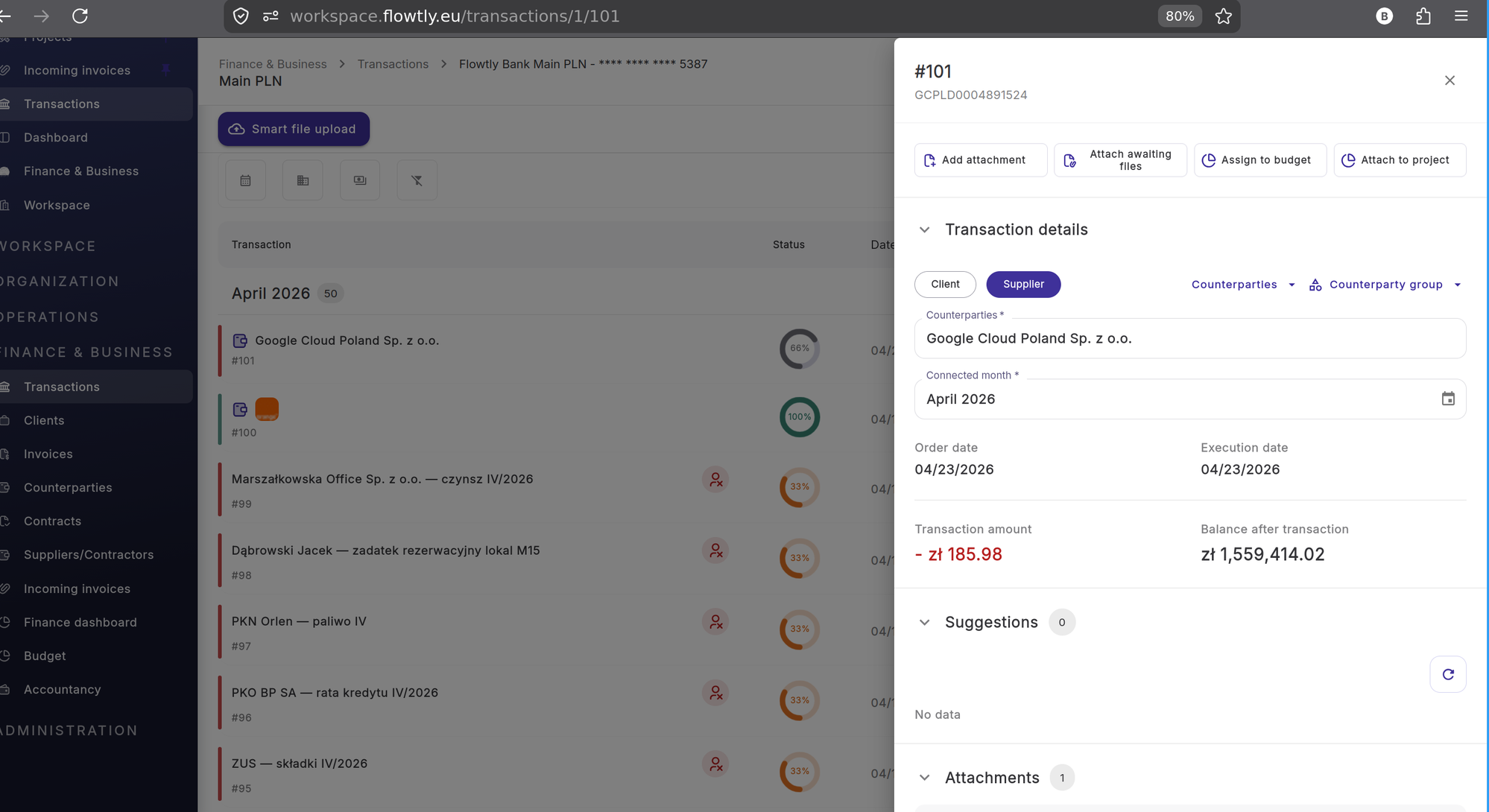
Click any row to open the detail panel on the right. The Supplier/Client toggle at the top selects the transaction direction — Supplier for outgoing payments, Client for income. Two fields are required for the monthly close: Counterparty (who the payment is to or from) and Connected month (the accounting period it belongs to). Fill both and they are saved immediately.

Wskazówki
  • The connected month is not necessarily the same as the transaction date — set it to the period your accountant should include this expense in.
Transaction detail panel showing Supplier toggle active, Counterparty field filled with Google Cloud Poland, and Connected month set to April 2026
Krok 3

Review AI supplier suggestions

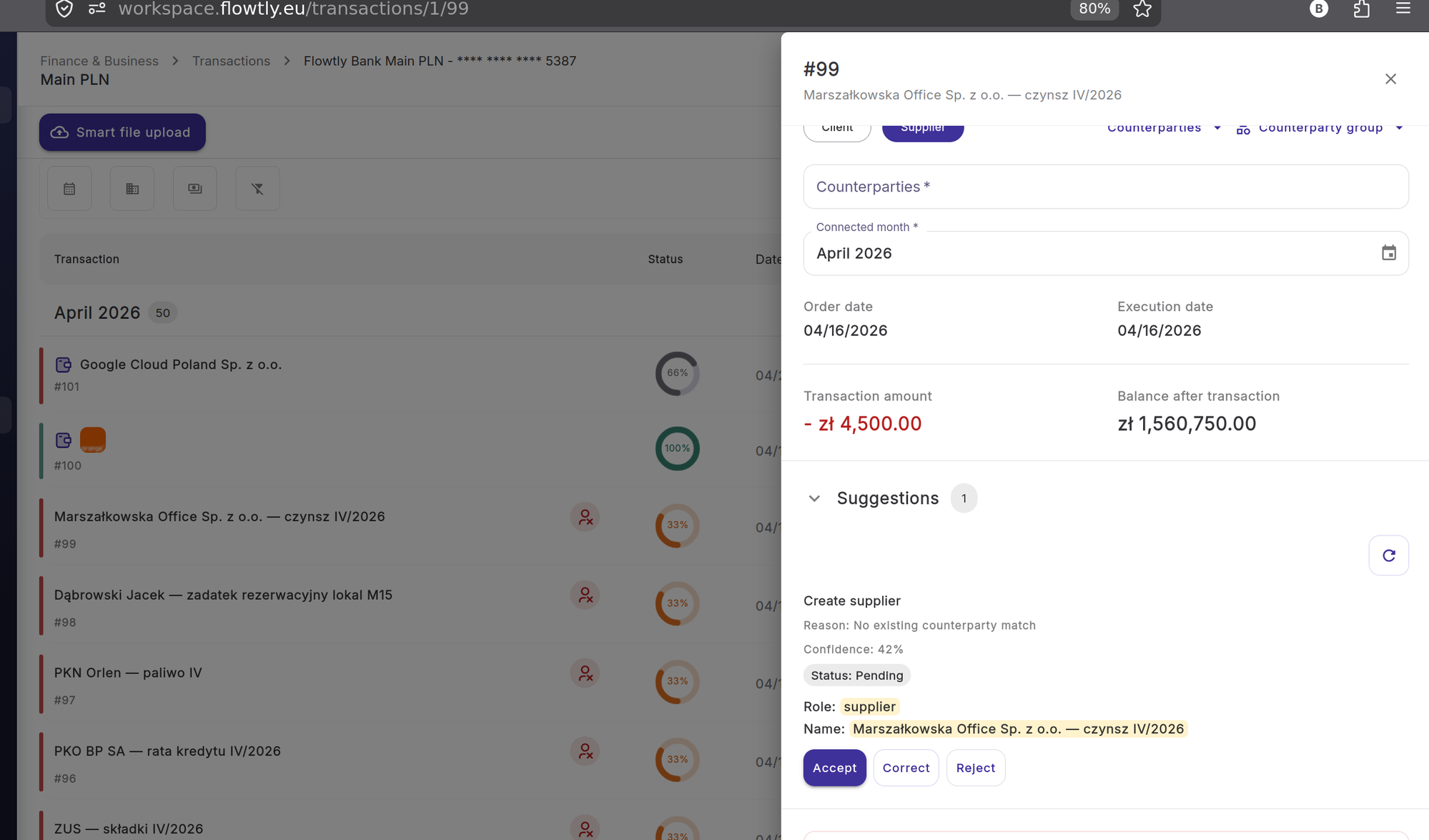
When Flowtly detects a payee with no existing counterparty match, it opens a Suggestions panel with a "Create supplier" card. The card shows the extracted name, its confidence score, and the reason. Click Accept to create the supplier and link it to the transaction in one step. Click Correct to adjust the name before creating. Click Reject to dismiss and set the counterparty manually.

Wskazówki
  • Suppliers created from suggestions are saved permanently — future transactions from the same payee will be matched automatically without any manual input.
Suggestions panel showing a Create supplier card for Marszałkowska Office with 42% confidence and Accept, Correct, Reject buttons
Krok 4

Enrich the counterparty

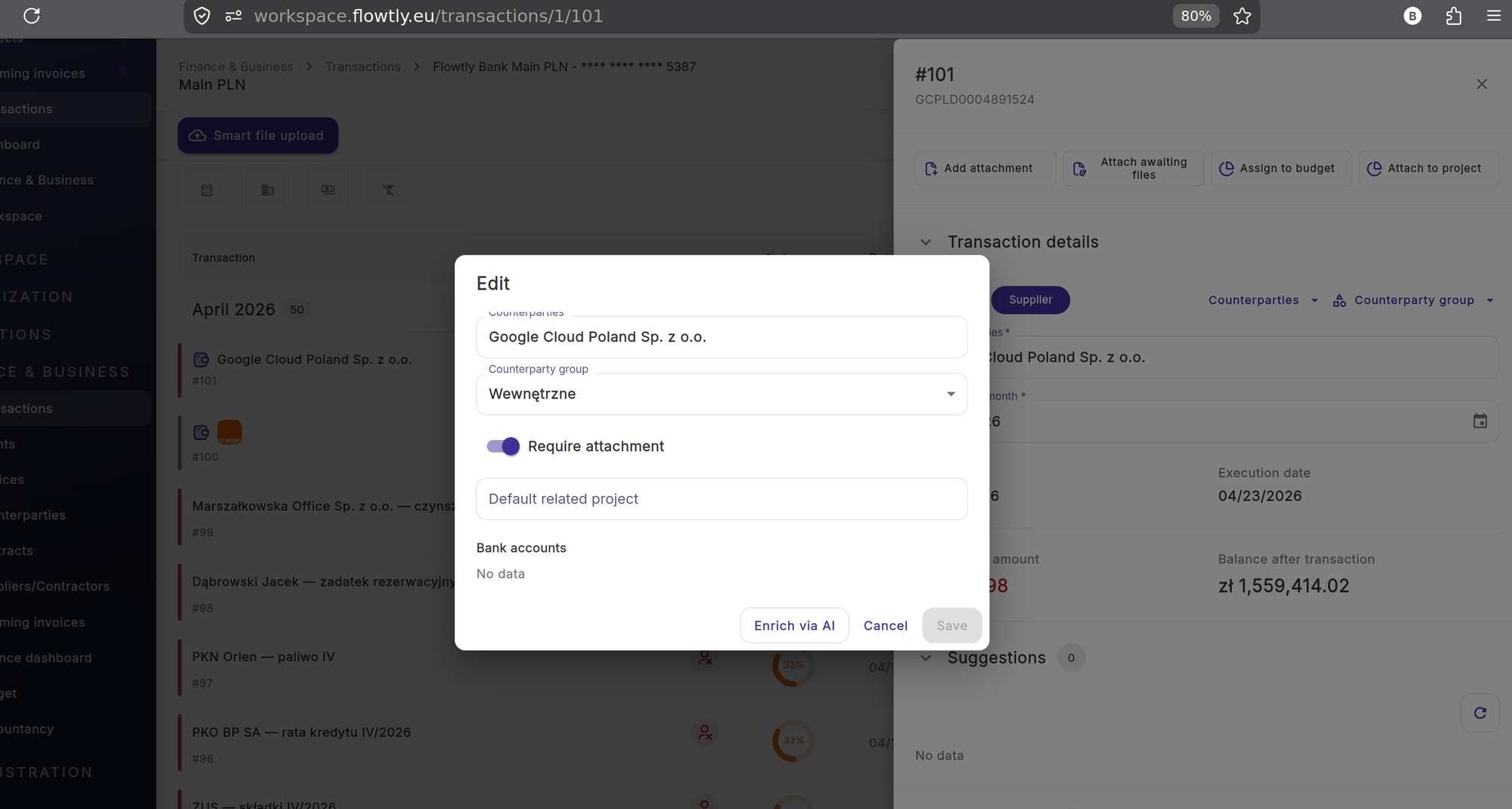
To edit a counterparty's settings, click the Counterparties link in the detail panel header to open the Edit dialog. Here you can assign a counterparty group (for example "Internal" or a cost category), toggle Require attachment to enforce that a document must always be linked for this payee, and set a Default related project so every new transaction from them is pre-assigned. Click "Enrich via AI" to let Flowtly fetch public company data such as VAT number, registered address, and bank accounts automatically.

Wskazówki
  • Setting a default related project is especially useful for recurring vendors like rent or SaaS subscriptions — it removes one manual step every month.
Edit counterparty dialog showing counterparty group dropdown set to Wewnętrzne, Require attachment toggle on, Default related project field, and Enrich via AI button
Krok 5

Attach an invoice to the transaction

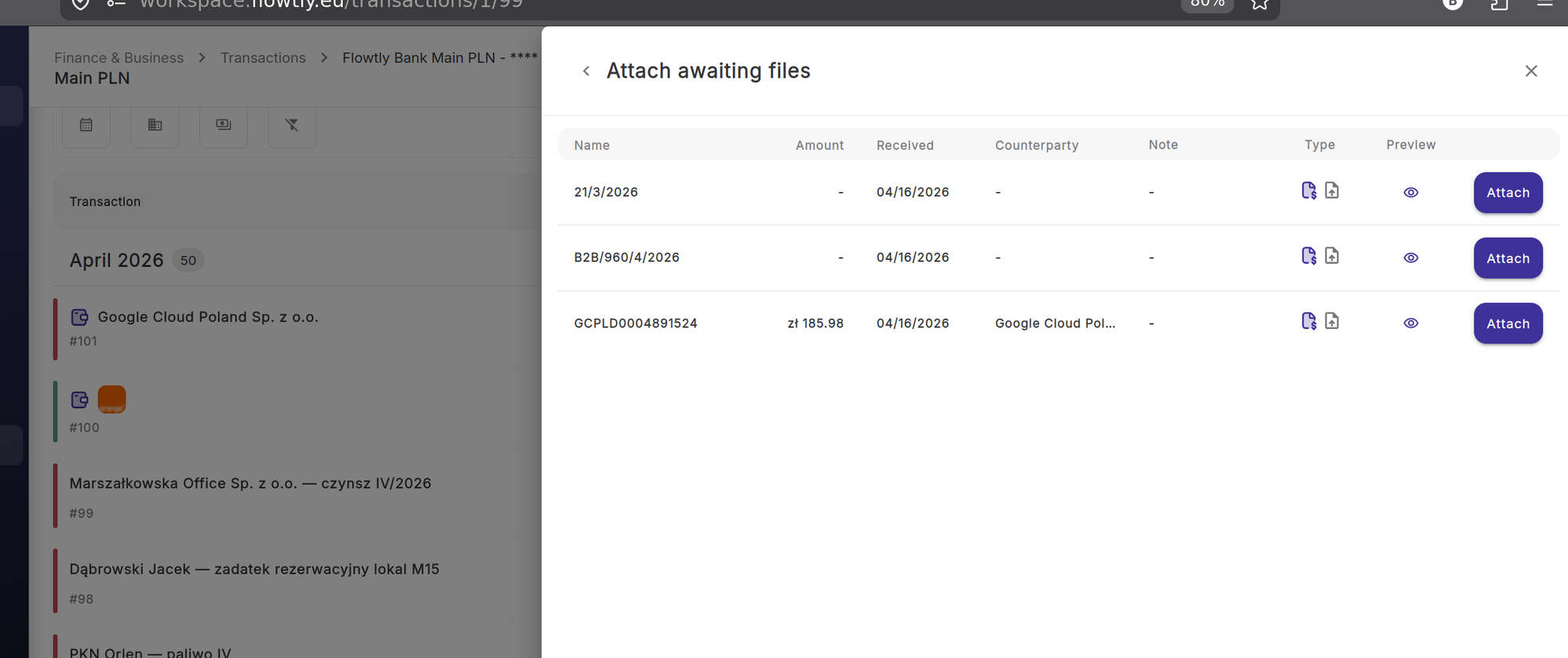
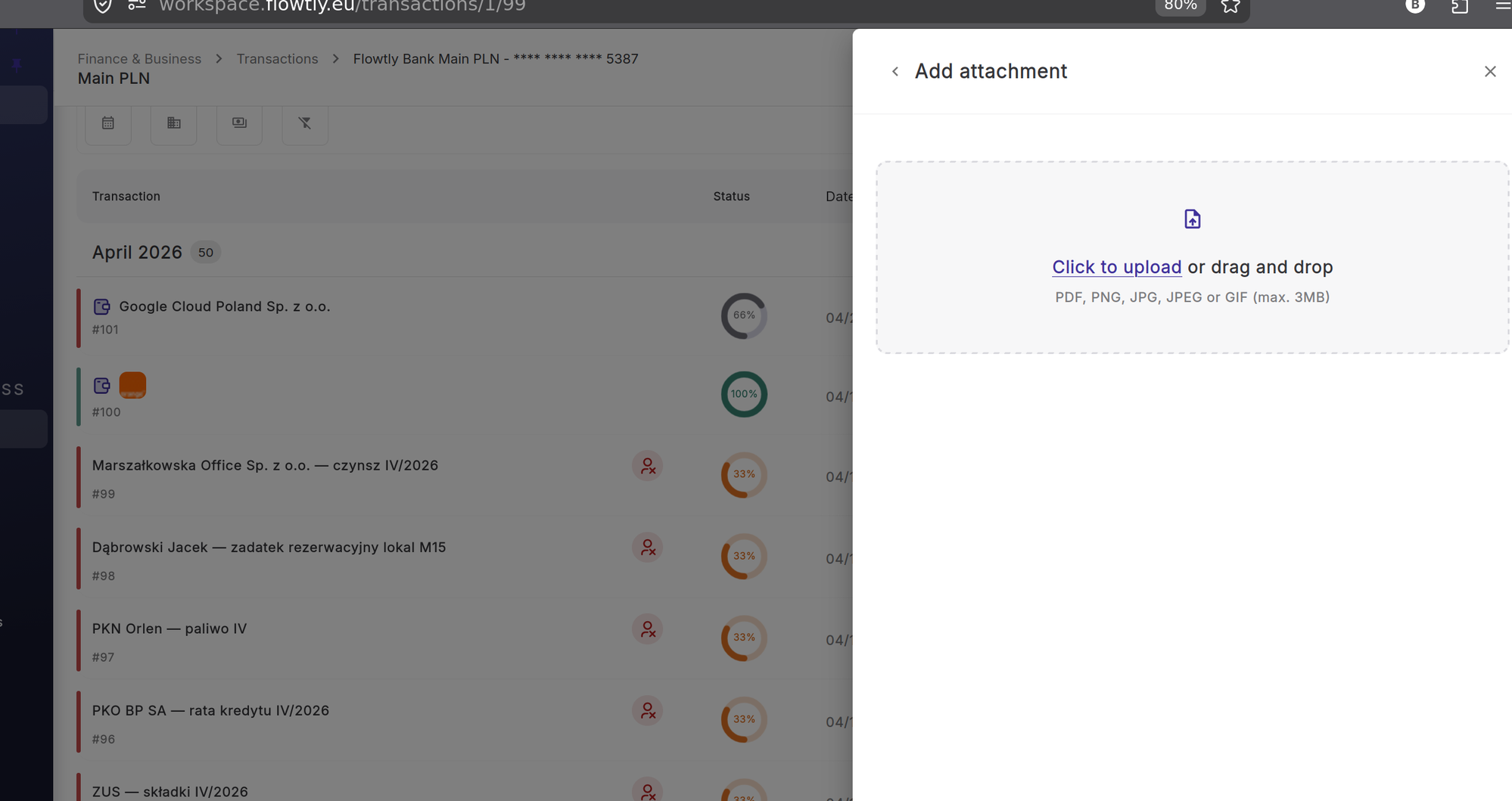
Use the "Attach awaiting files" button to link an invoice that is already in Flowtly's Incoming Invoices list — the panel shows all unlinked invoices with their amount, received date, and counterparty so you can match the right one and click Attach. If the document is not yet in Flowtly, use "Add attachment" instead to upload a PDF, PNG, JPG, JPEG, or GIF file (max 3 MB) directly from your computer.

Wskazówki
  • Attach awaiting files is the fastest path — it reuses a document you already processed in Incoming Invoices so you don't duplicate uploads.
Attach awaiting files panel listing three pending incoming invoices with amount, received date, counterparty, and Attach buttons
Add attachment panel showing a drag and drop upload zone accepting PDF, PNG, JPG, JPEG, or GIF up to 3 MB
Krok 6

Assign the transaction to a budget

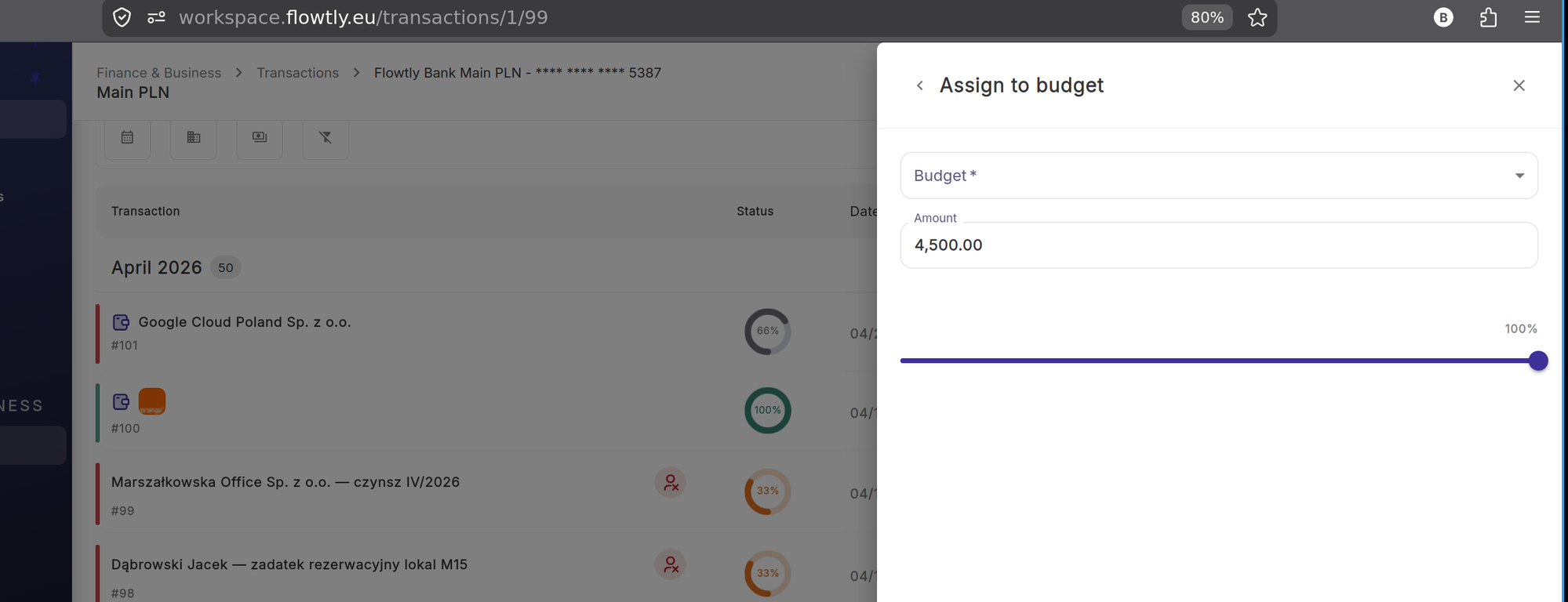
Click "Assign to budget" in the action bar at the top of the detail panel. Select the budget line from the dropdown, confirm the amount (pre-filled with the transaction value), and use the percentage slider if you want to allocate only a portion. Click Assign. You can assign the same transaction to multiple budget lines by repeating the flow.

Wskazówki
  • Assigning to a budget keeps your spending reports accurate and lets you see at a glance how much of each budget line has been consumed.
Assign to budget panel with budget dropdown, amount 4500.00, and percentage slider set to 100%
Krok 7

Attach to a project

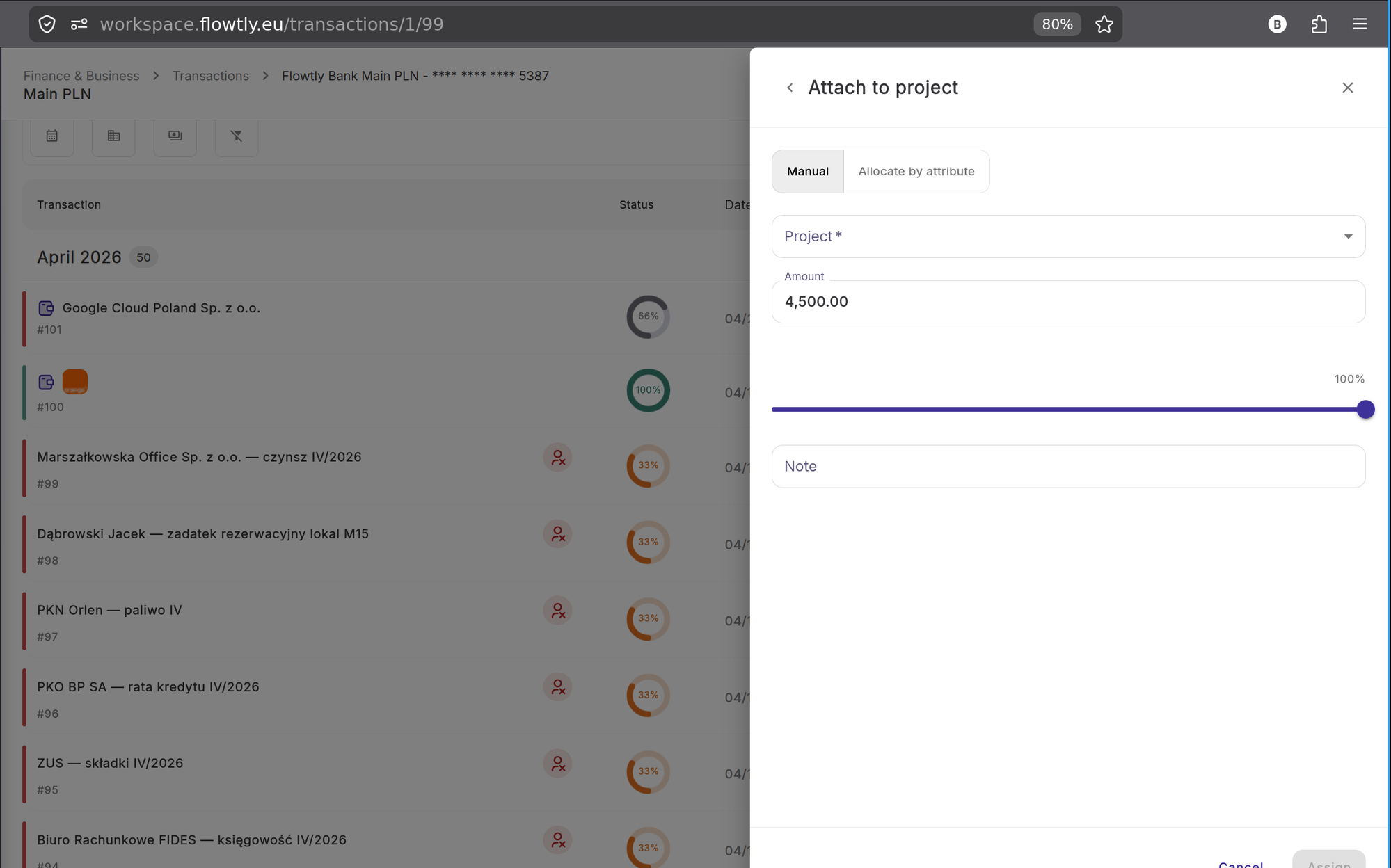
Click "Attach to project" to link the transaction to a project for cost tracking. The Manual tab lets you pick a specific project, set the amount and percentage, and add an optional note. The Allocate by attribute tab distributes the cost automatically across projects based on shared attributes. Click Assign to save.

Wskazówki
  • Use the note field to explain partial allocations — for example "50% billable to client, 50% internal" — so your finance team has context when reviewing the project P&L.
Attach to project panel showing Manual tab with project dropdown, amount 4500.00, percentage slider at 100%, and Note field
Krok 8

Record payment receipt on client transactions

When a bank transfer arrives from a client, open the transaction and switch the toggle to Client. The detail panel shows an "Unpaid or partially paid invoices" field listing all your outgoing invoices that have not yet been fully paid. Select the matching invoice from the dropdown. Flowtly records the payment against that invoice and updates its status to Paid automatically once the full invoice amount is matched.

Wskazówki
  • If a client pays multiple invoices in one transfer, you can link the transaction to several invoices by selecting them one at a time — Flowtly tracks the remaining balance on each.

Gotowe!

Your transactions are now categorized, documented, and linked to budgets and projects. Repeat this flow each time new bank activity arrives — the combination of AI suggestions and incoming invoice matching makes it faster with every cycle.

Więcej samouczków

Pierwsze kroki

Utwórz organizację w Flowtly

Skorzystaj z tego przewodnika krok po kroku, aby przejść od rejestracji konta Flowtly do uruchomienia pierwszej organizacji.

HR i kadry

Dodaj pracownika w Flowtly

Dodaj nowego członka zespołu, nadaj uprawnienia i aktywuj umowę, aby od razu mógł pracować w Flowtly.

Whatsapp